

User Management
The process for logging in and managing users differs for Dr Migrate depending on whether Marketplace or SaaS is in use.
Users with the admin role have the ability to add new users to existing deployments.
Login Methods Comparison
| Marketplace Login | SaaS Login | |
|---|---|---|
| Access Method | Azure Bastion | Web Browser |
| Authentication | VM credentials specified during deployment | Azure AD B2B with MFA |
| Prerequisites | Azure subscription access with appropriate permissions | Email invitation acceptance and MFA setup |
| URL | Access through Azure Portal | Dr Migrate Portal ↗ |
Add Users
The process for adding users varies depending on your deployment type. Select your deployment type below for specific instructions.
Marketplace Deployment
Users created within Dr Migrate are granted access to both the web interface and the Dr Migrate Virtual Machine via Bastion.
Prerequisites
The user account created during deployment has the required rights to create new users.
Additional users can only be created once an initial scan has been uploaded.
Access User Management
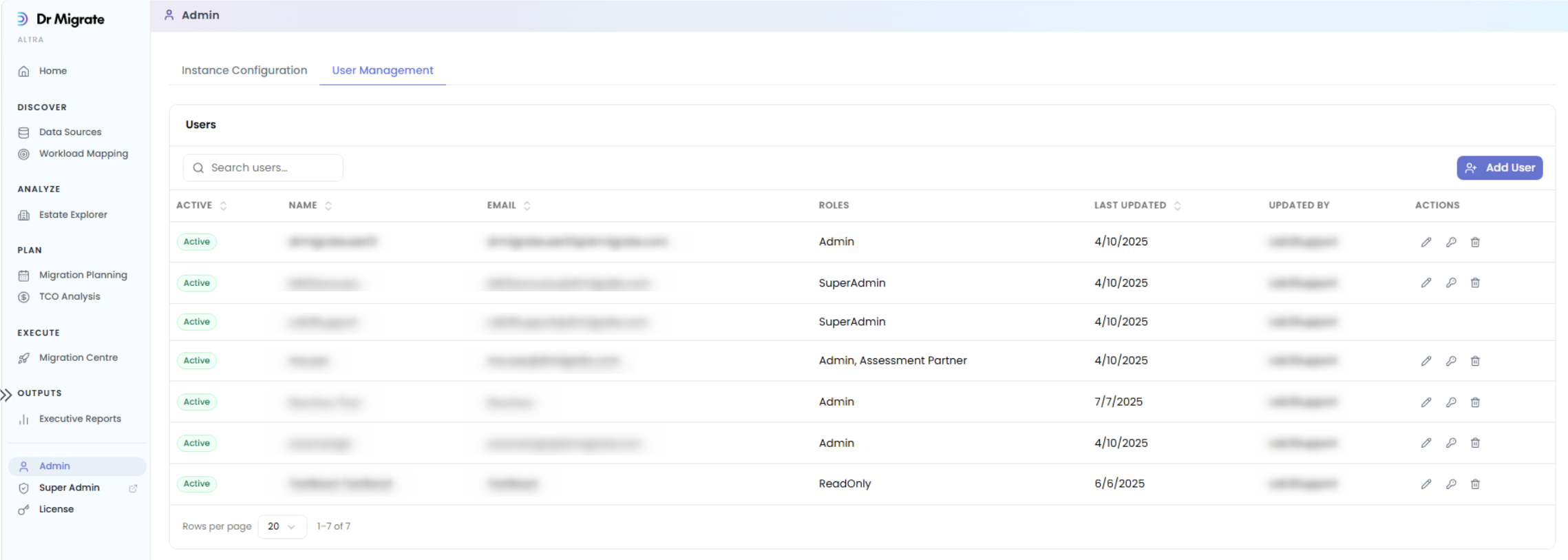
Login to the Dr Migrate admin console and navigate to user management under admin.
Configure User Details
Click Add User, then enter the user's details and ensure Active is selected.
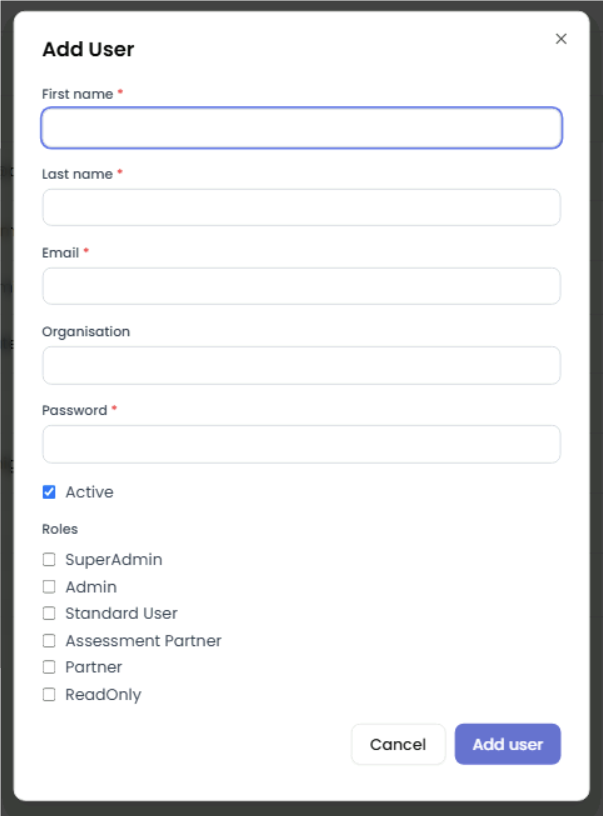
Password Requirements:
- Minimum length: 8 characters
- At least one uppercase letter
- At least one lowercase letter
- At least one digit
- At least one special character
Select User Role
Most users should be assigned either the "Standard User" or "Admin" role. The admin role enables access to administration functions like User Management, Auto Patching and AI Toggles.
If a more specific access use case is required and you wish to use one of the other roles please consult with the support team first.
Complete Setup
Click Add to create the user. They will be prompted to change their password on first login.
Grant Azure Access
Grant users reader access to the subscription containing Dr Migrate to enable Bastion access.
Delete a User
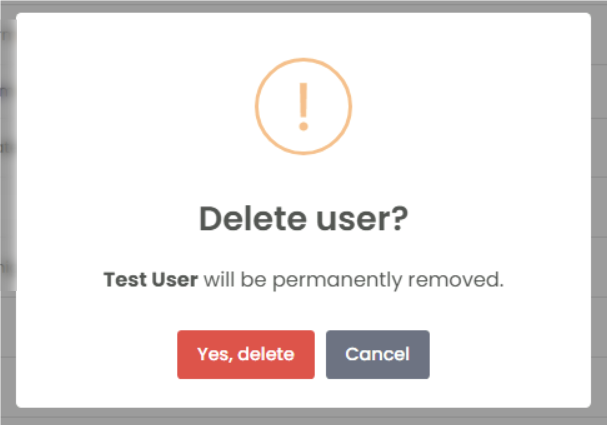
Click the delete icon next to the user in the Users table. Confirm the deletion in the dialog that appears.
SaaS Deployment
Prerequisites
You must have an invitation to the Dr Migrate Cloud platform. Contact support if needed.
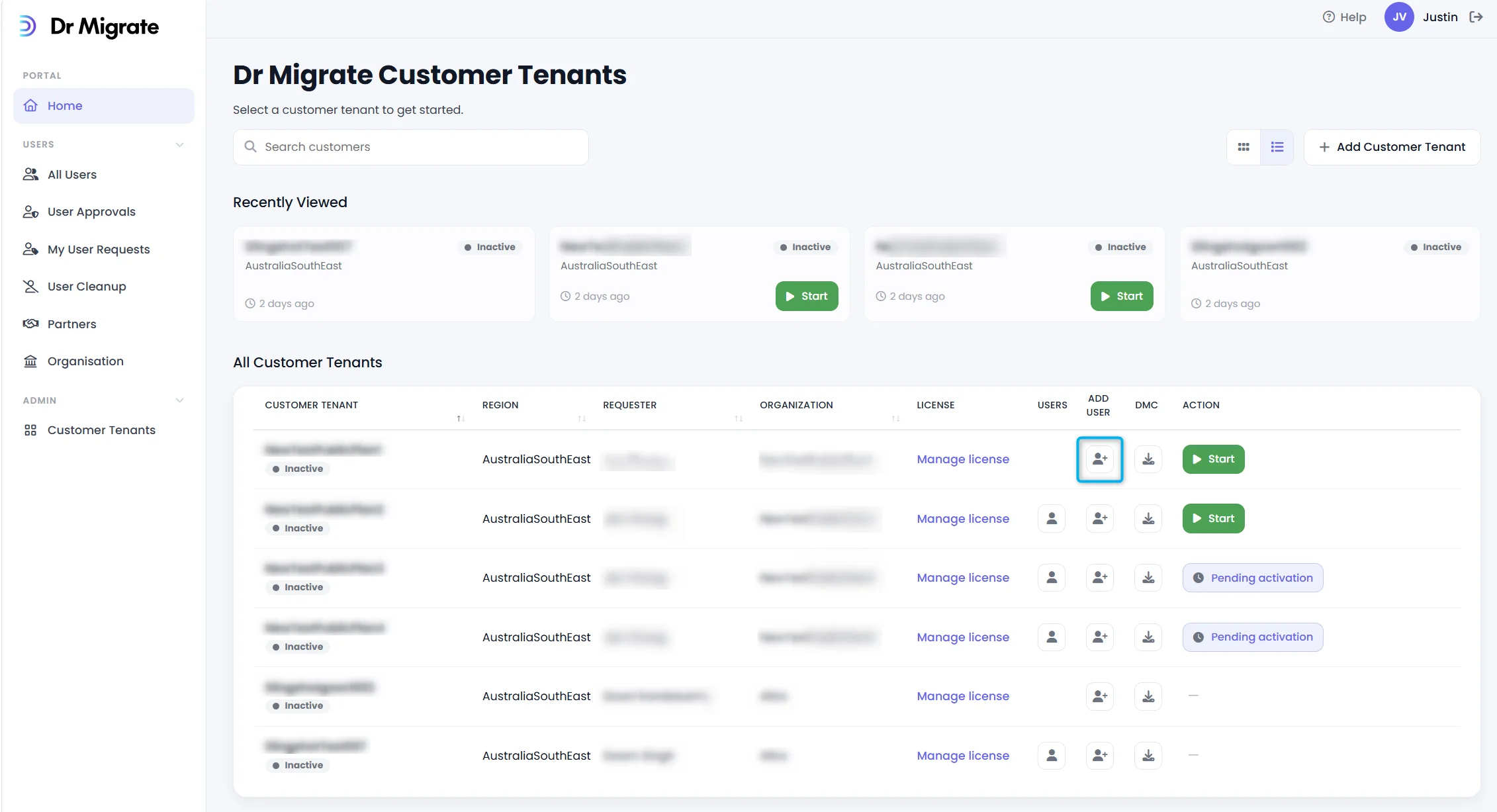
Enter User Email
Enter the address the user signs in with (their UPN), not an email alias. An invitation sent to an alias causes a sign-in loop.
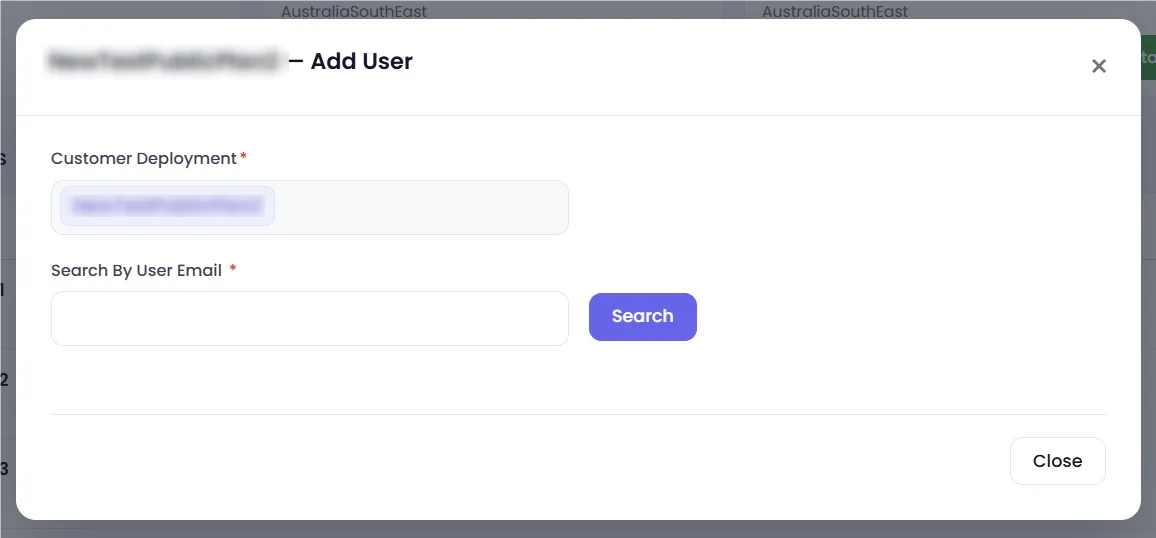
Users must have an active O365 Mailbox for Dr Migrate Cloud login.
Configure User Details
For new users:
- Organization is automatically selected
- Choose appropriate Access Level
- Enter user information (First Name, Last Name, Email)
- Add optional invitation comments
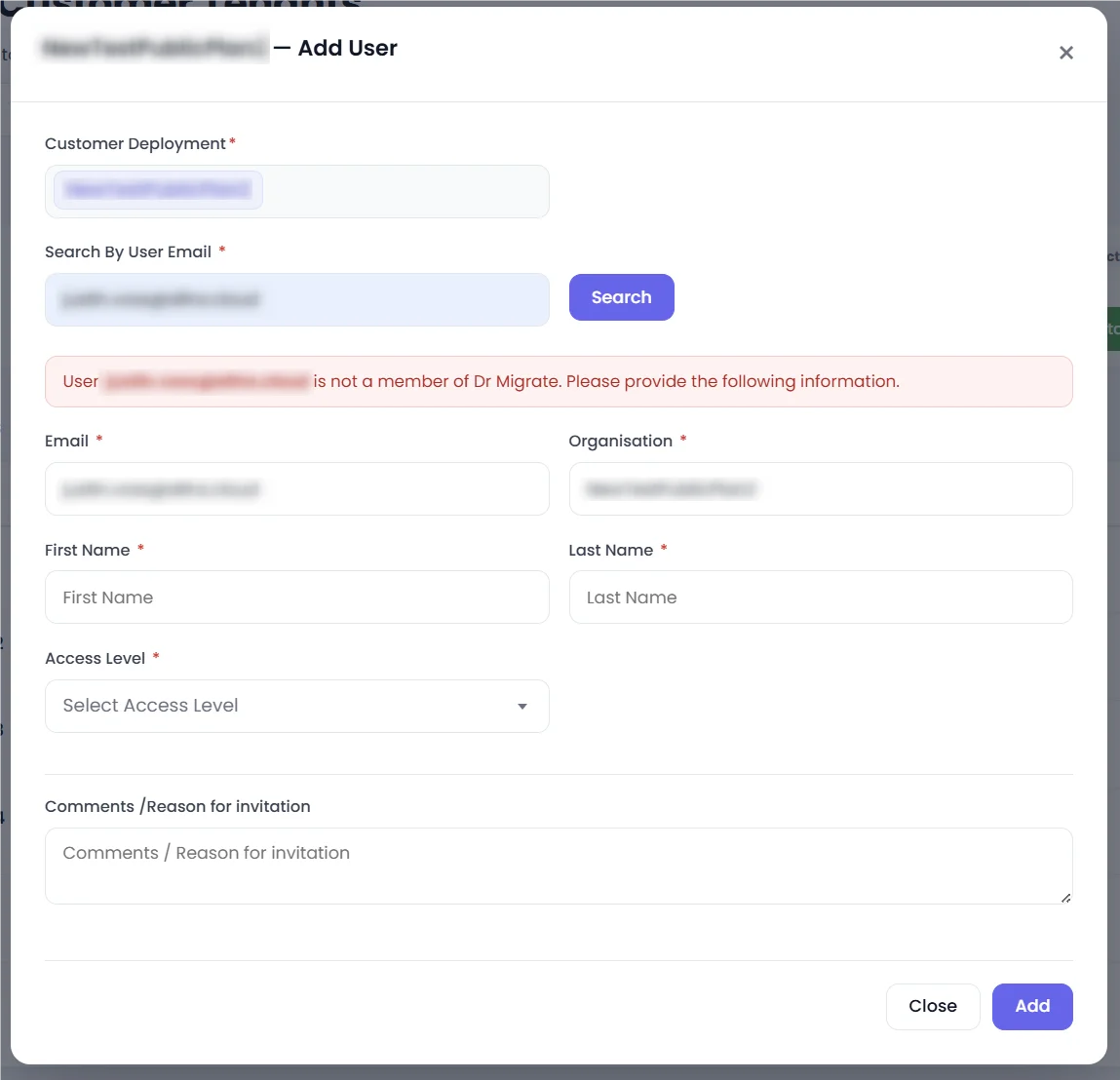
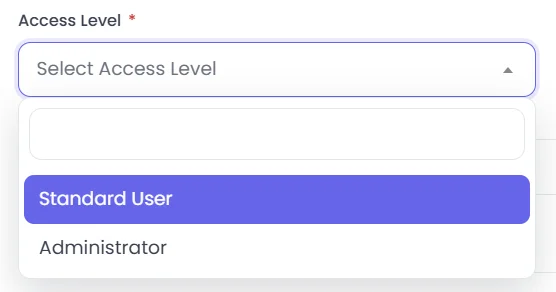
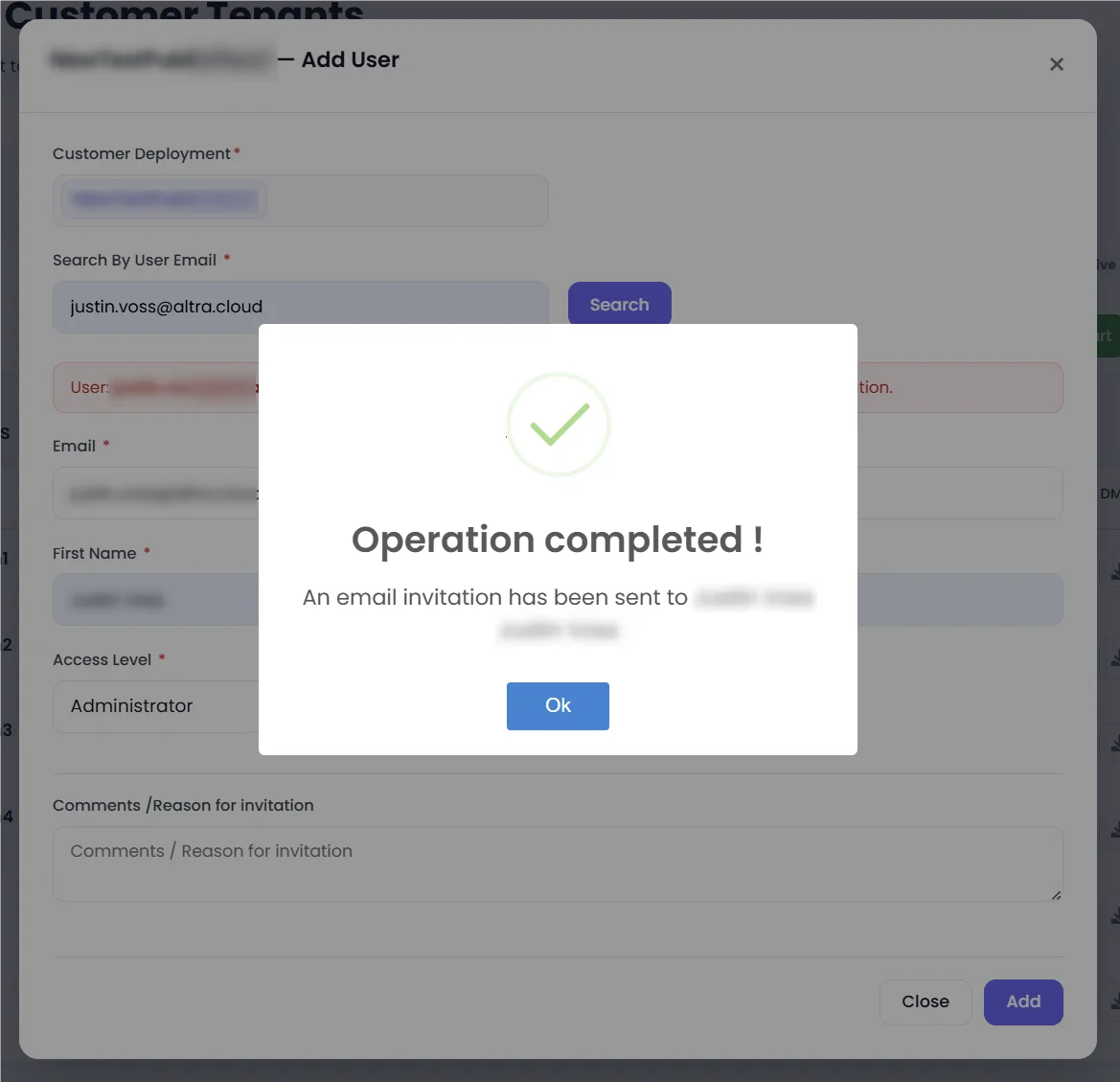
Invitation emails come from "Microsoft Invitations" and may appear in Spam/Junk folders.
Managing Users
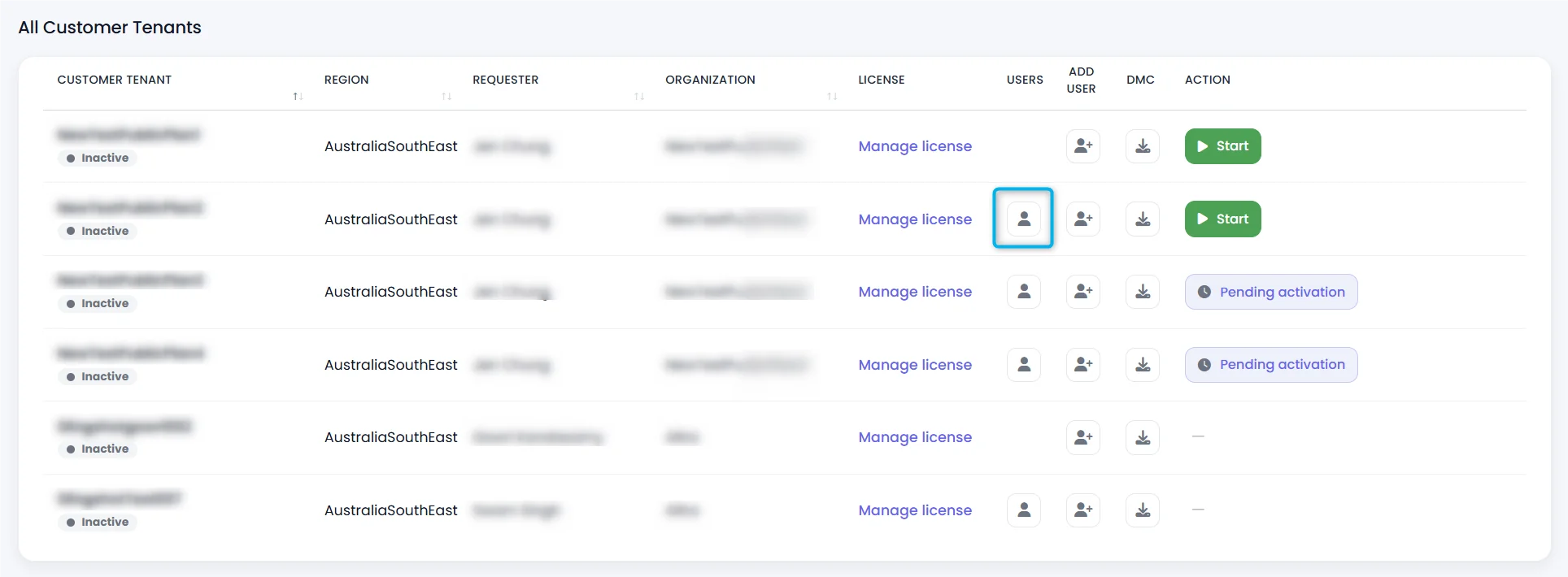
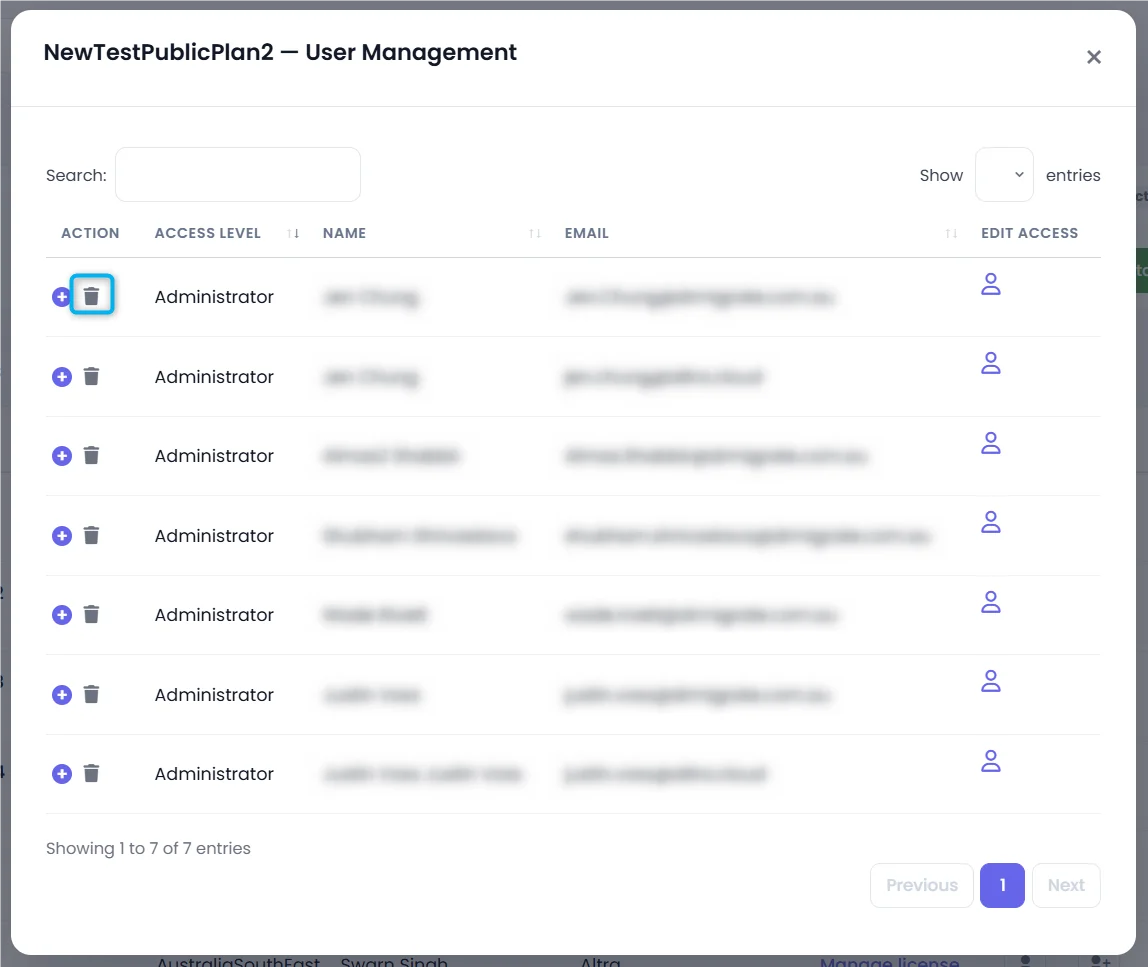
To view and manage users assigned to a deployment, click the Users icon in the Customer Tenants table.
The User Management dialog lists all users for the deployment with their access level, name, and email.
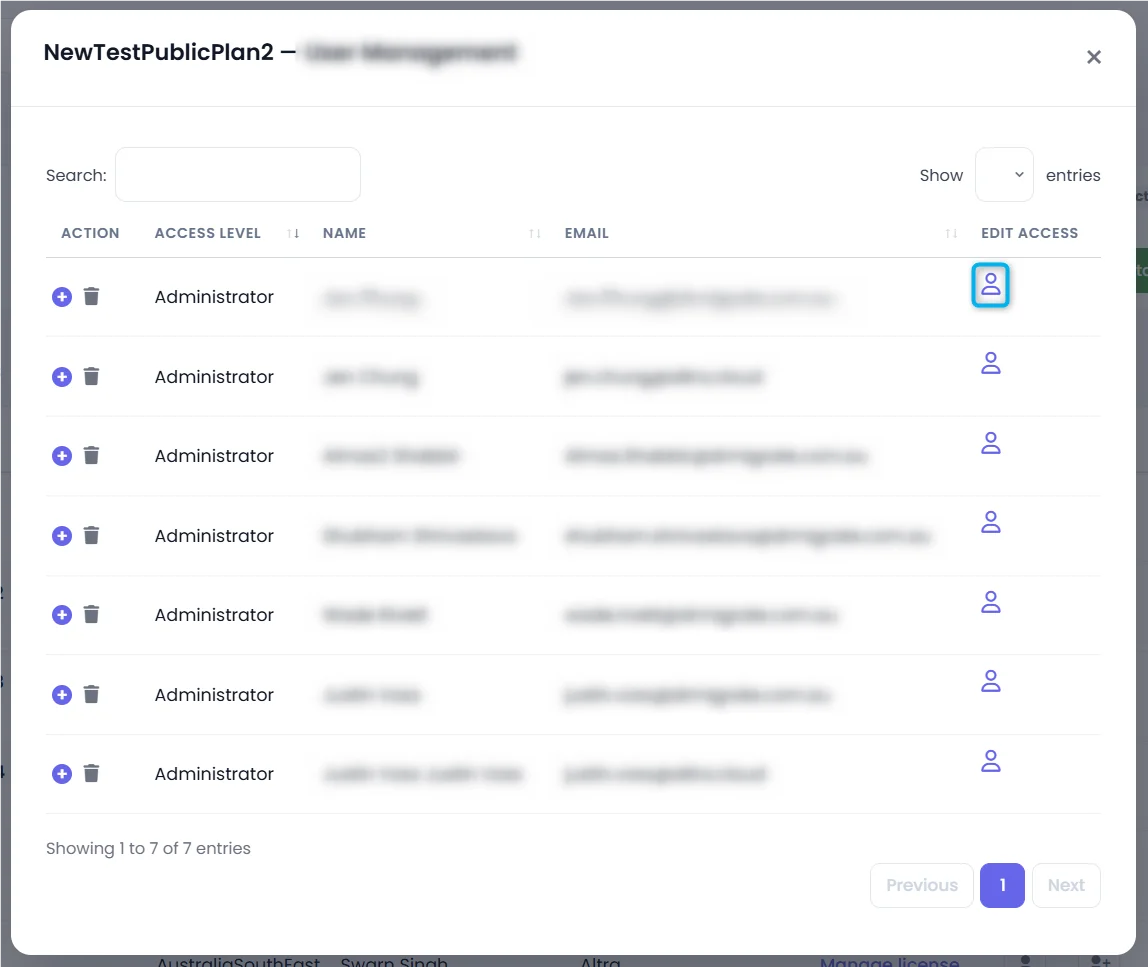
Edit Access Level
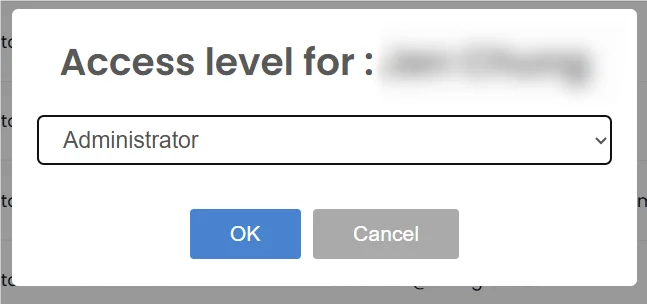
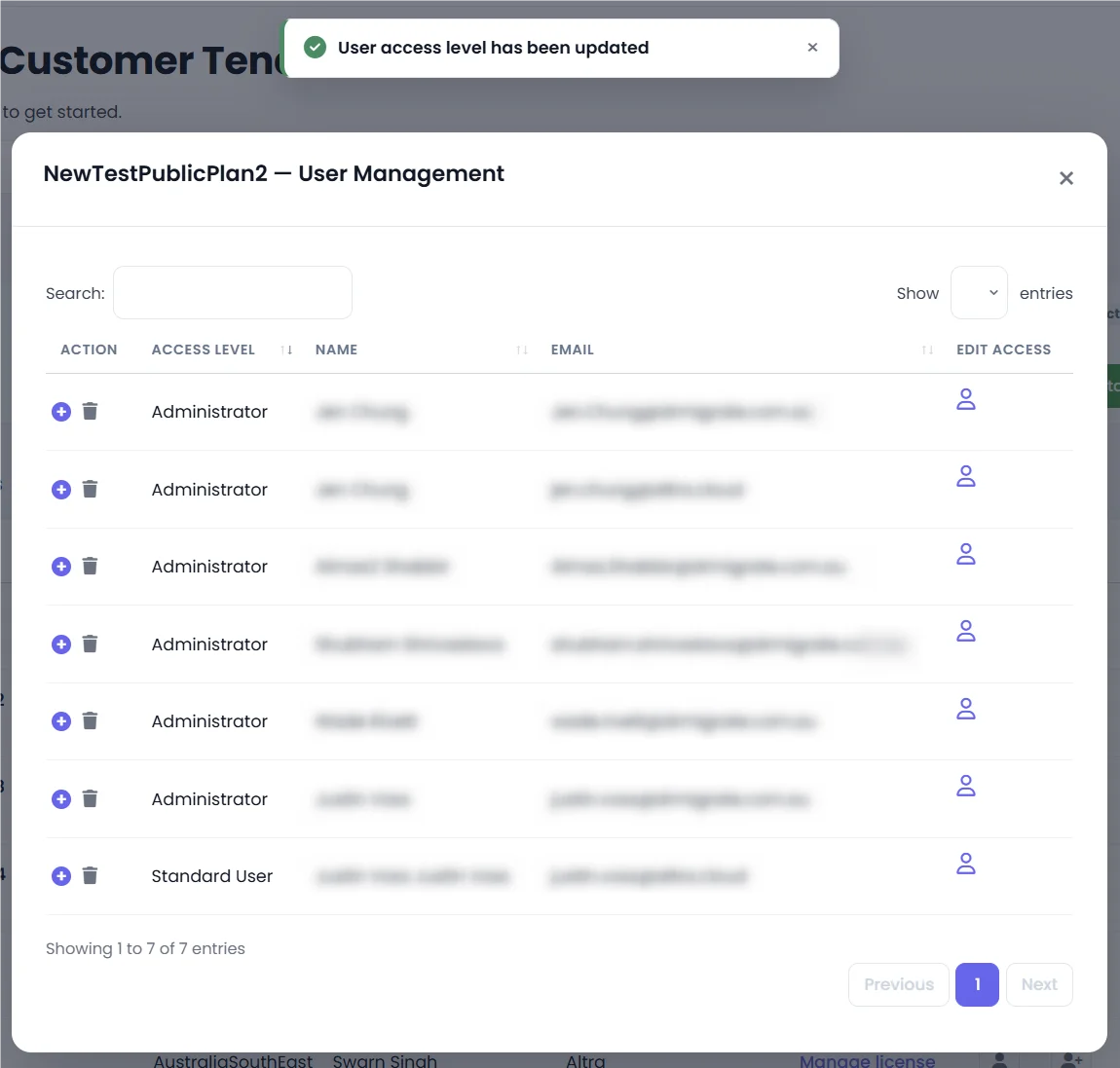
Click the Edit Access icon for any user to change their access level. Select the new level and click OK.
Remove a User
Click the delete icon next to a user to remove them from the deployment.
Clicking the delete icon removes the user immediately. There is no confirmation dialog.
Logging On
The login process varies depending on your deployment type. Select your deployment type below for specific instructions.
Marketplace Deployment
Users access Dr Migrate through Azure Bastion using their VM credentials.
Prerequisites
- Azure subscription access with appropriate permissions
- VM credentials provided by your administrator
Access Azure Portal
- Log in to the Azure Portal ↗
- Navigate to your Dr Migrate VM
- Select "Connect" and choose "Bastion"
Connect to VM
- Enter your VM credentials
- Click "Connect"
Access Dr Migrate
- Open your web browser
- Navigate to the Dr Migrate web interface
- Log in with your credentials
SaaS Deployment
Prerequisites
- Email invitation from Dr Migrate
- Active O365 Mailbox
- MFA setup completed
Accept Invitation
- Open the invitation email
- Click the invitation link
- Complete the authentication process
First-Time Login
- Navigate to Dr Migrate Portal ↗
- Click "Sign in"
- Use your O365 credentials
- Complete MFA if prompted
Subsequent Logins
- Navigate to Dr Migrate Portal ↗
- Click "Sign in"
- Use your O365 credentials
If you haven't received an invitation email, check your Spam/Junk folder or contact your administrator.
Sign-in troubleshooting
These apply to SaaS deployments.
| Symptom | Fix |
|---|---|
| New phone, or lost access to your authenticator app | Raise a support request with the email you sign in with. Support resets your MFA, and you register a new device at your next sign-in. |
| "Username or Password is not correct" | Your organisation manages your password, not Altra. Contact your own IT helpdesk. |
| After MFA you are asked which account to sign out of, or see "This username may be incorrect" | The invitation went to an email alias instead of your sign-in address (UPN). Ask an instance admin to remove you and invite your UPN. |
| The Customer Tenants list is empty | Your account is not assigned to any instance. Ask an instance admin to add you, or contact support if no admin is available. |