Azure VM Scan
The Azure VM scan collects configuration, Azure Monitor performance metrics, software inventory, network dependency data, and SQL Server instances from Azure Virtual Machines. Guest-level collection (software, network, SQL) requires a supported guest access method alongside the Azure Service Principal.
Before you start
Complete all steps in Azure Requirements before running this scan.
You will need:
- An Azure Service Principal with Tenant ID, Client ID, Client Secret, and Subscription ID
- The Service Principal assigned a role with at least
Readeraccess - One guest access method configured: WinRM for Windows VMs or SSH for Linux VMs
Guest access methods
Guest-level data is collected using one of two methods, depending on the guest OS.
Windows WinRM
Uses WinRM to connect directly to Windows VMs. Requires network connectivity from the DMC host to each VM on port 5985 (HTTP) or 5986 (HTTPS).
- Windows VMs only
- WinRM must be enabled and accessible on target VMs
- Local administrator credentials required for each target VM
- NSG rules must allow inbound WinRM from the DMC host
Linux SSH
Uses SSH to connect directly to Linux VMs. Requires network connectivity from the DMC host to each VM on port 22.
- Linux VMs only
- SSH must be enabled and accessible on target VMs
- A user account with sudo privileges is required
- NSG rules must allow inbound SSH from the DMC host
What gets collected
| Data Category | Requires Guest Access |
|---|---|
| VM configuration (size, location, OS image, tags) | No |
| Disk configuration (type, size, encryption) | No |
| Network interface and IP configuration | No |
| Azure Monitor metrics (CPU, memory, disk, network) | No |
| Software inventory and installed applications | Yes |
| Active network connections and listening ports | Yes |
| SQL Server instances and databases | Yes |
| Guest OS details (hostname, uptime, services) | Yes |
For a full breakdown of collected fields and metric definitions, see Azure Metrics.
Running the scan
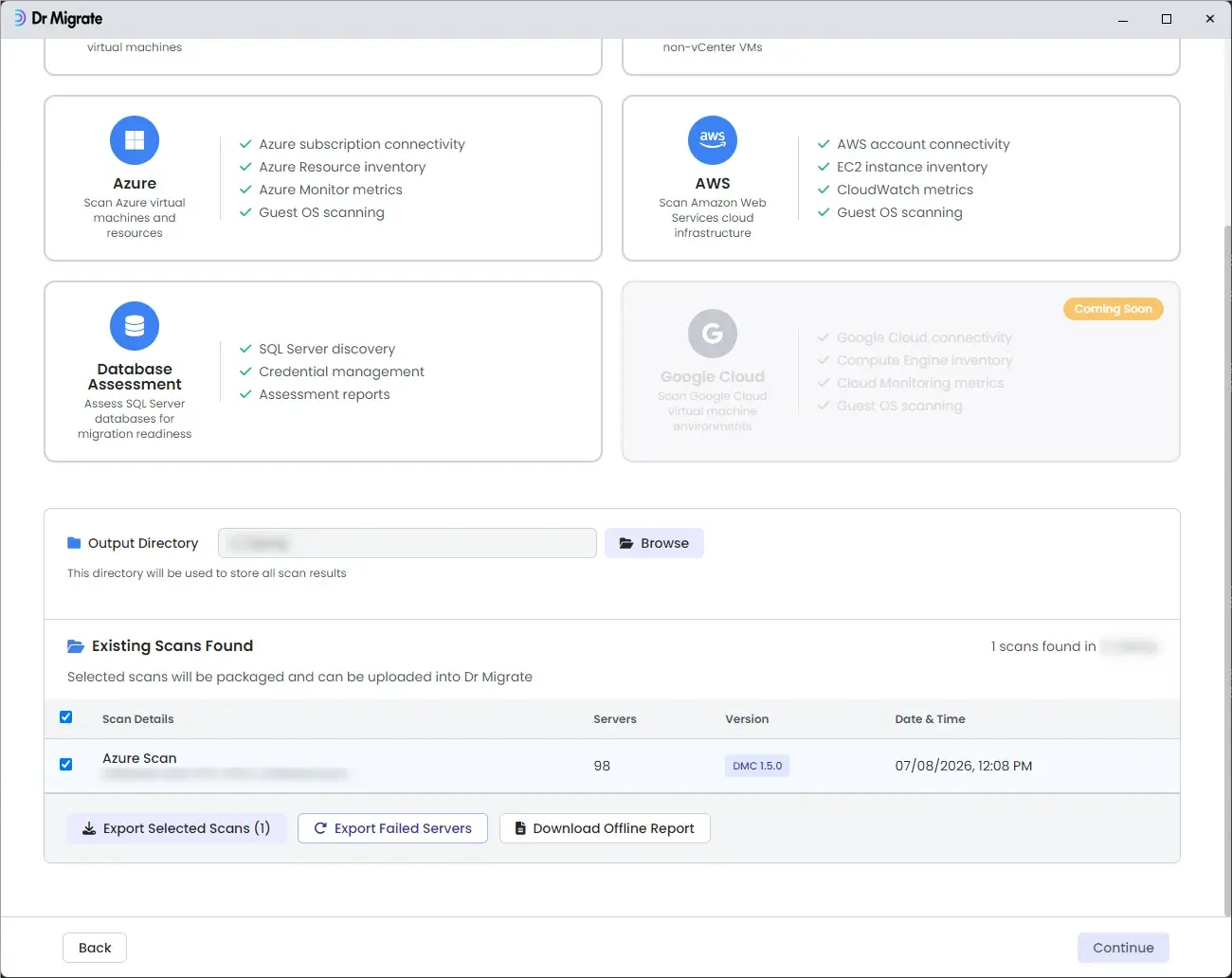
The Azure scan wizard walks you through five steps: subscription, guest credentials, settings, scan, and results. Before the wizard starts, DMC asks which type of Azure scan you want to run.
Choose your scan type
After selecting Azure on the main screen, DMC presents three options:
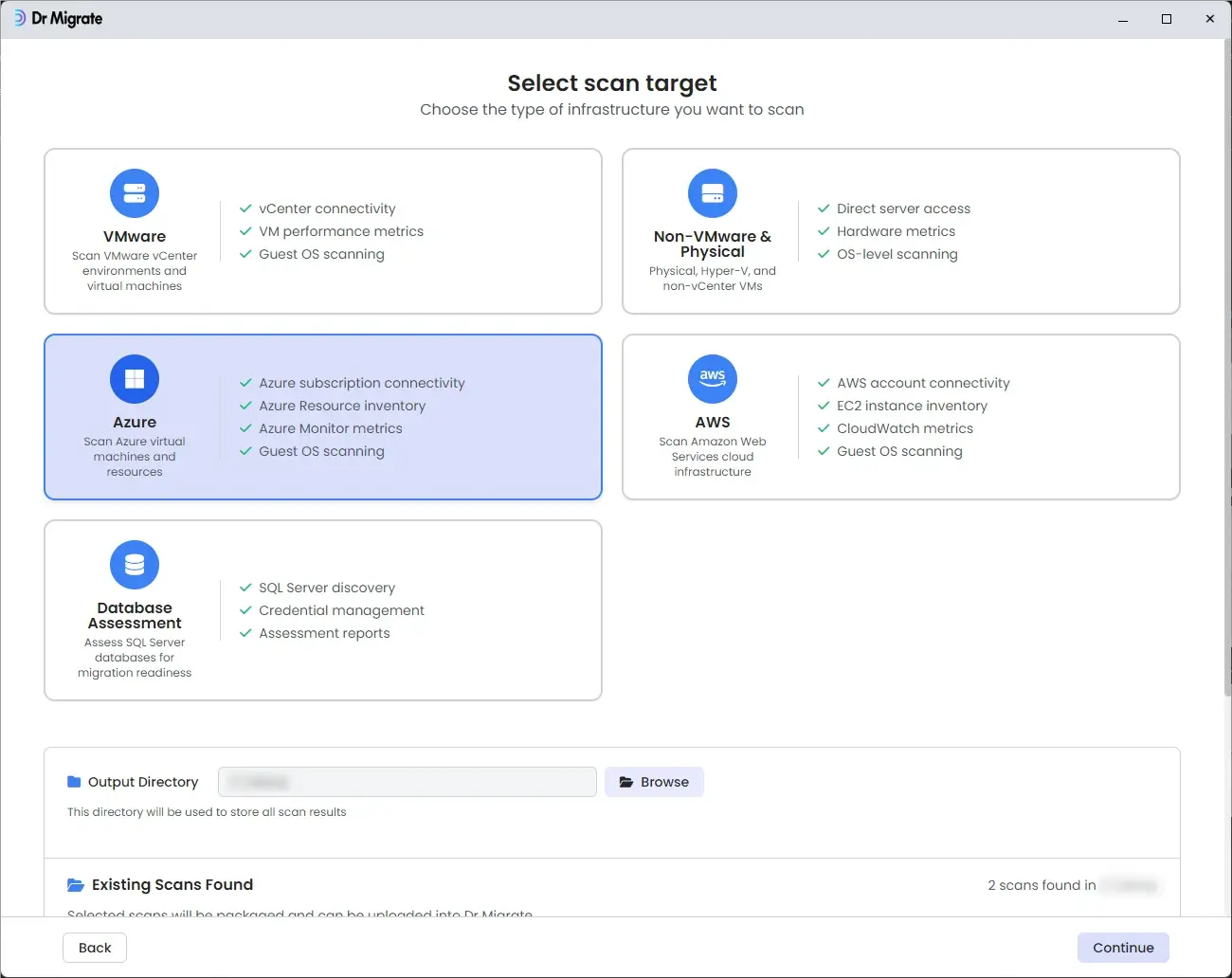
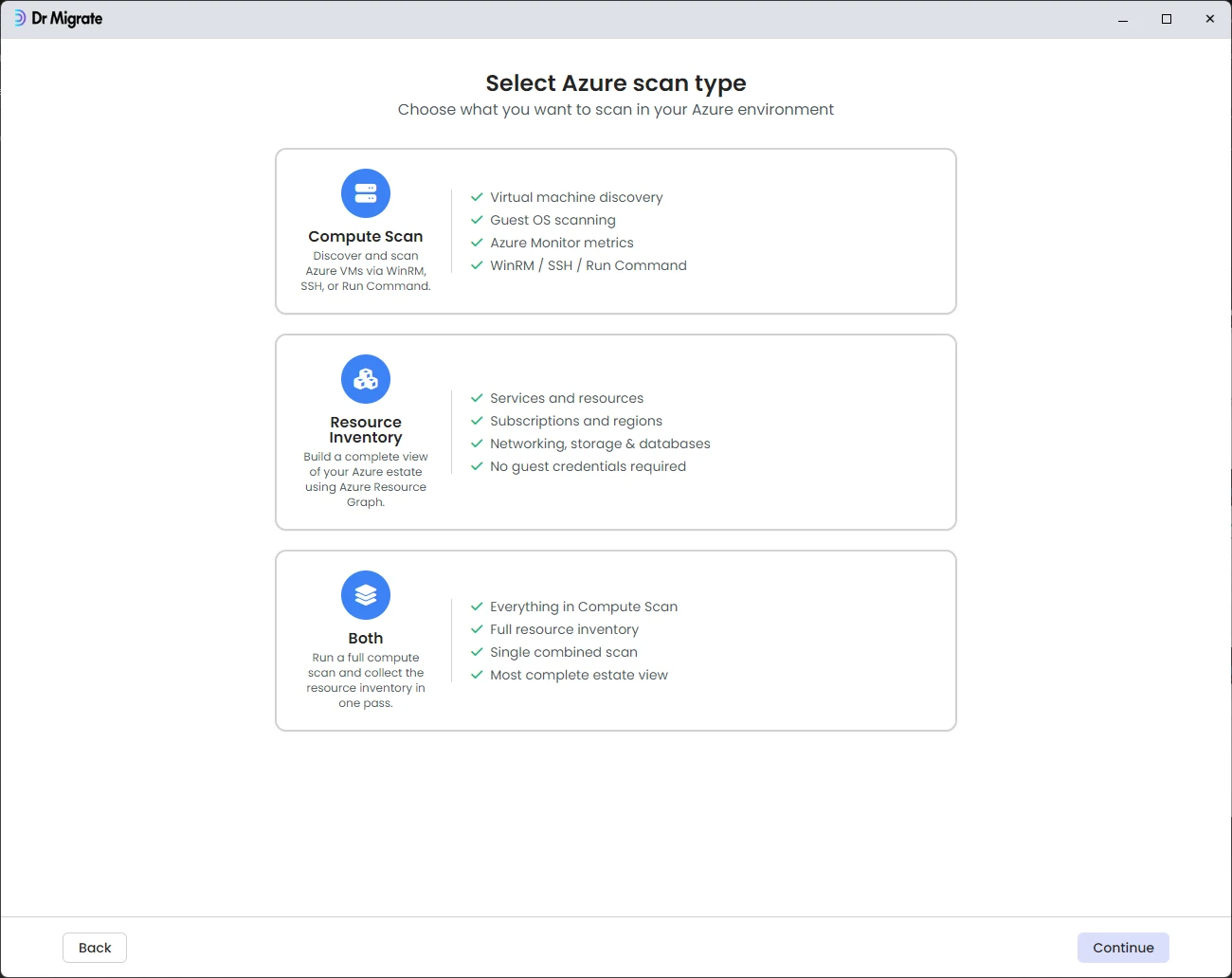
| Option | What it does | Wizard steps shown |
|---|---|---|
| Compute Scan | Discovers and scans Azure VMs: configuration, Azure Monitor metrics, and guest-level data (software, network, SQL) when guest access is configured. | Subscription, Guest Credentials, Settings (General + Compute tabs), Scan, Results |
| Resource Inventory | Inventories all Azure resources via Azure Resource Graph. No VM credentials required. See Azure Resource Discovery. | Subscription, Settings (General + Resource Inventory tabs), Scan, Results |
| Both | Runs a Compute Scan and Resource Inventory together in a single pass, the most complete picture of your Azure estate. See Compute Scan & Resource Inventory. | Subscription, Guest Credentials, Settings (General + Compute + Resource Inventory tabs), Scan, Results |
Wizard steps
Azure Subscription
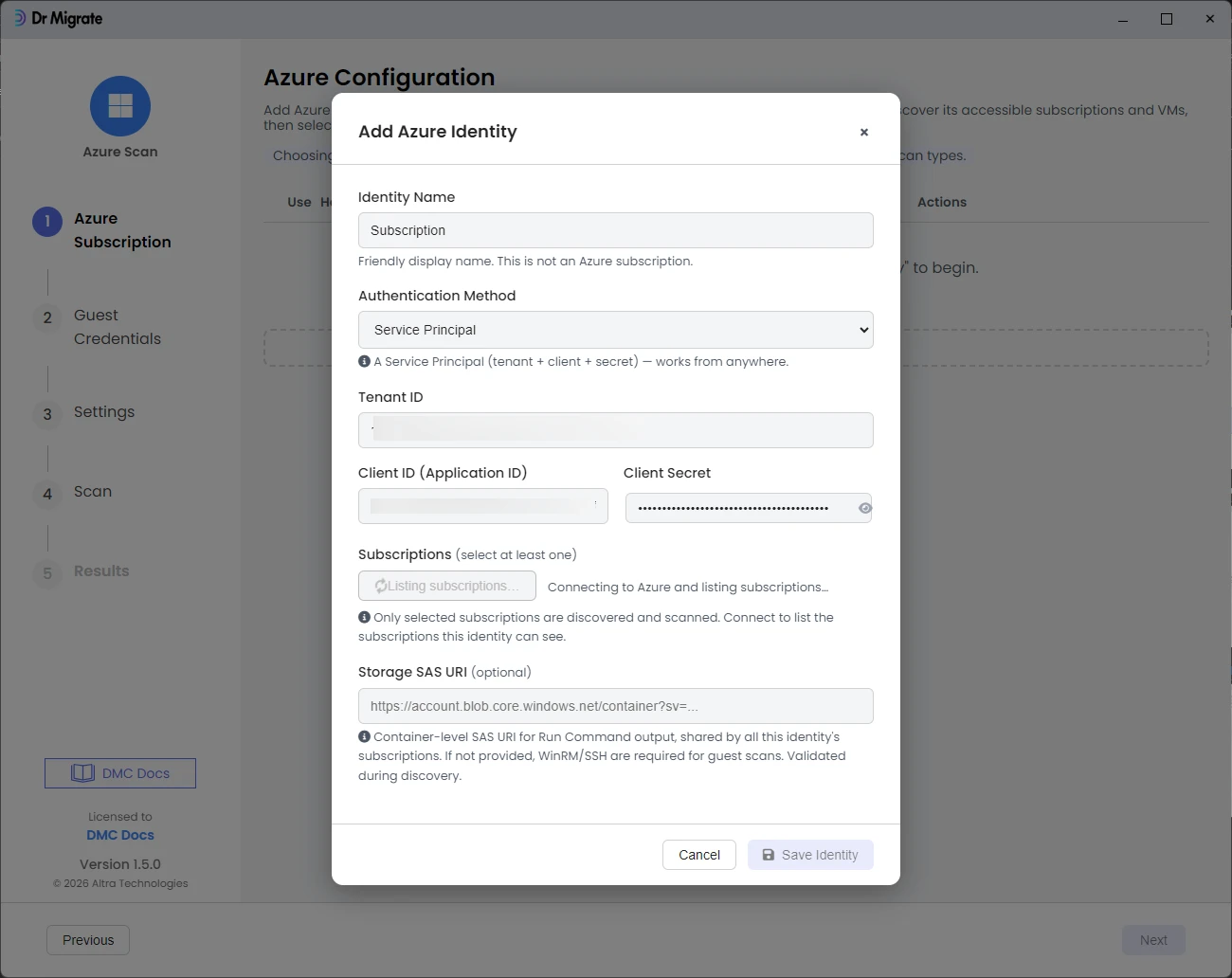
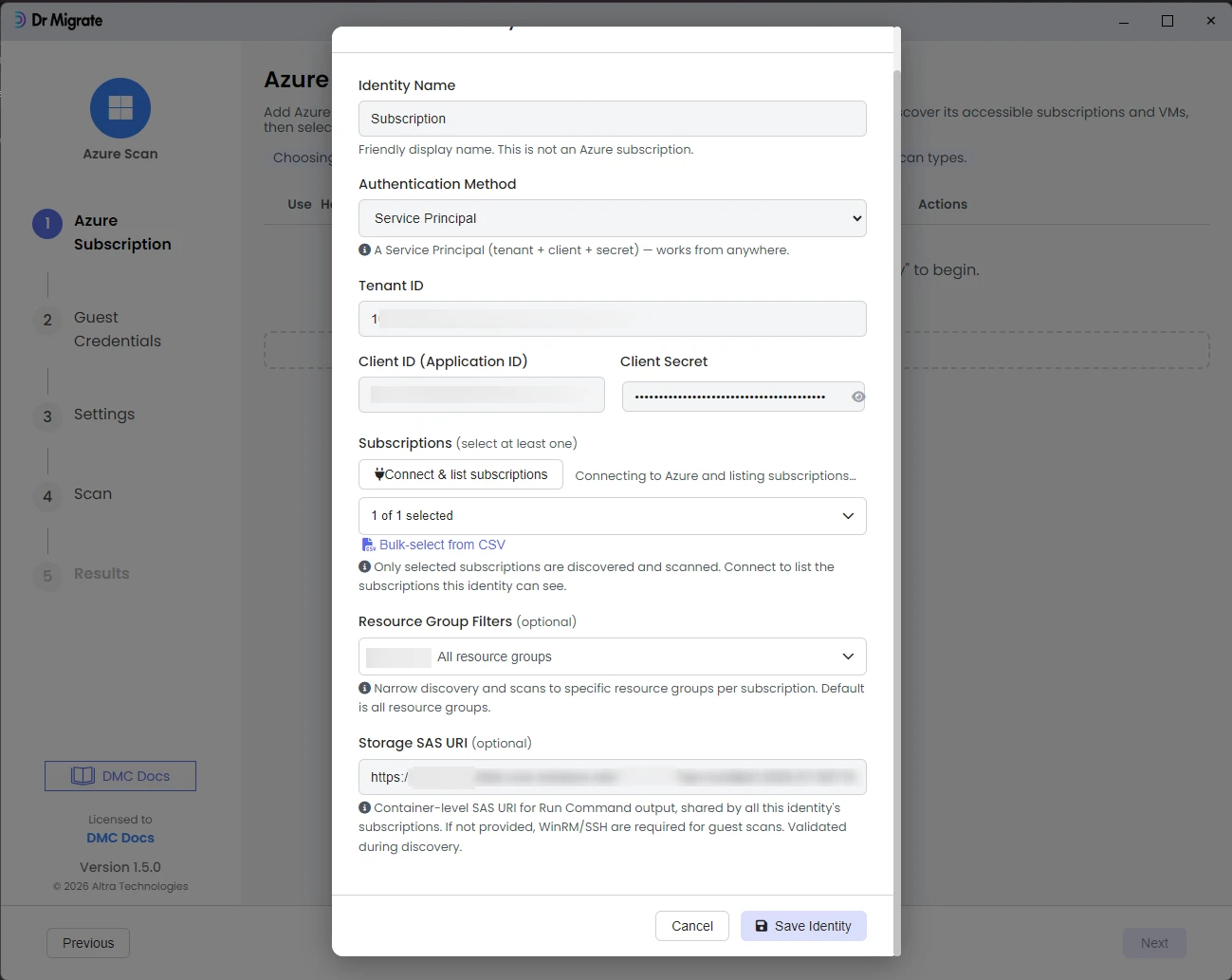
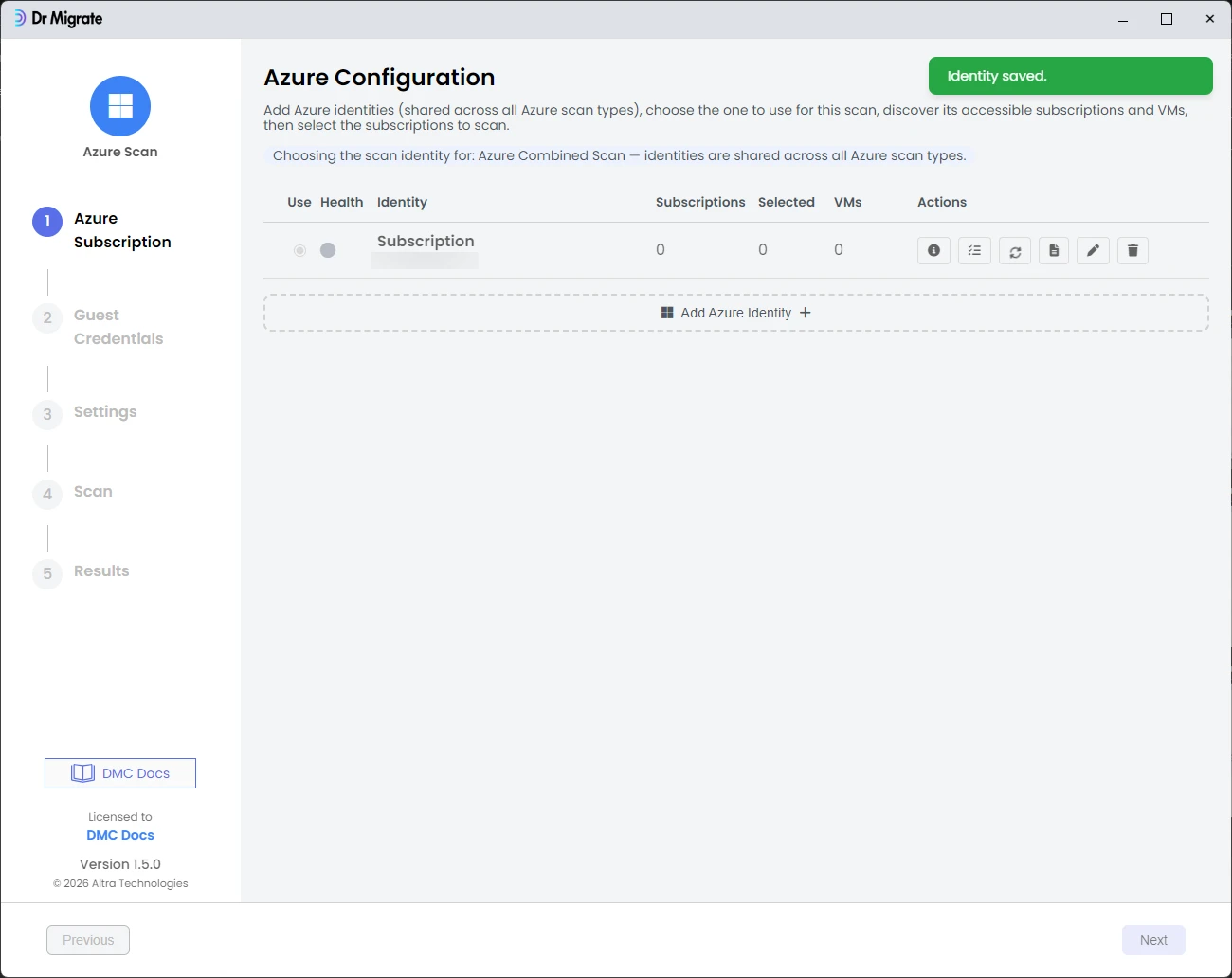
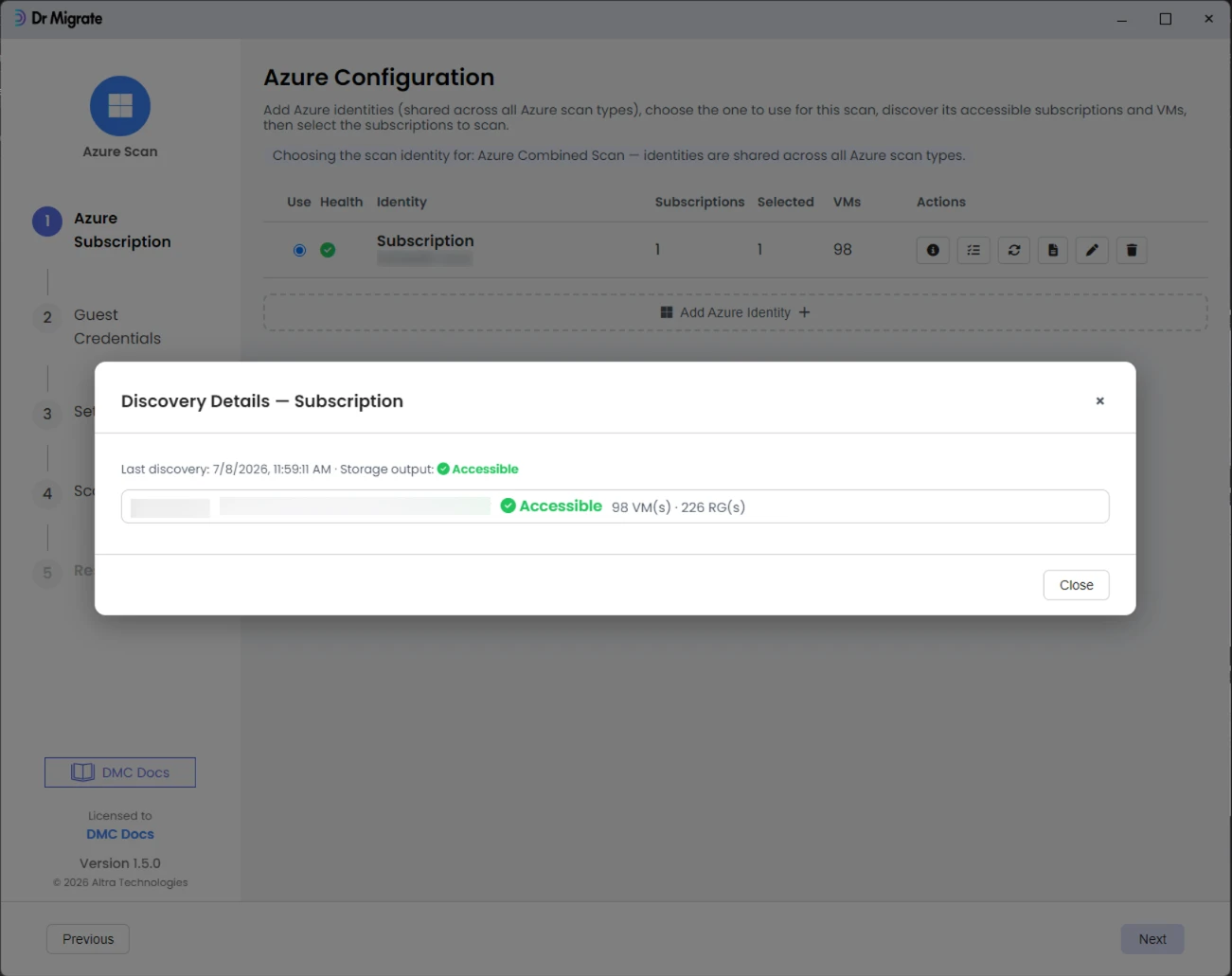
Click Add Azure Identity + and choose your authentication method:
- Manual SPN: Enter Tenant ID, Client ID (Application ID), Client Secret, and Subscription ID. Optionally provide one or more resource group names to limit scope.
- Managed Identity: DMC uses the managed identity of the Azure VM it runs on. Optionally specify a user-assigned Client ID, then click Connect & list subscriptions to select which subscriptions to include.
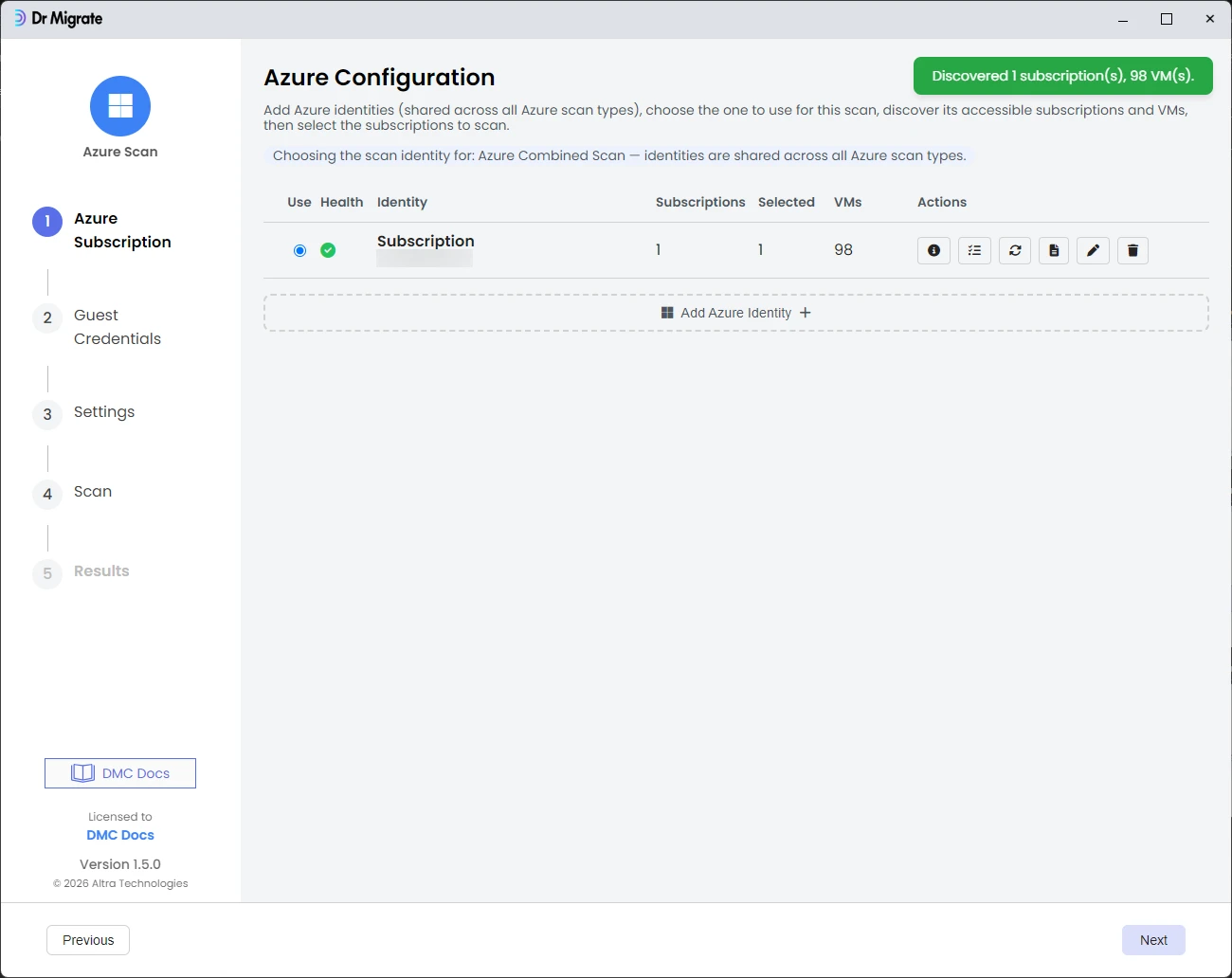
Click Test & Save. DMC validates connectivity and RBAC permissions, then displays the number of VMs and resource groups found.
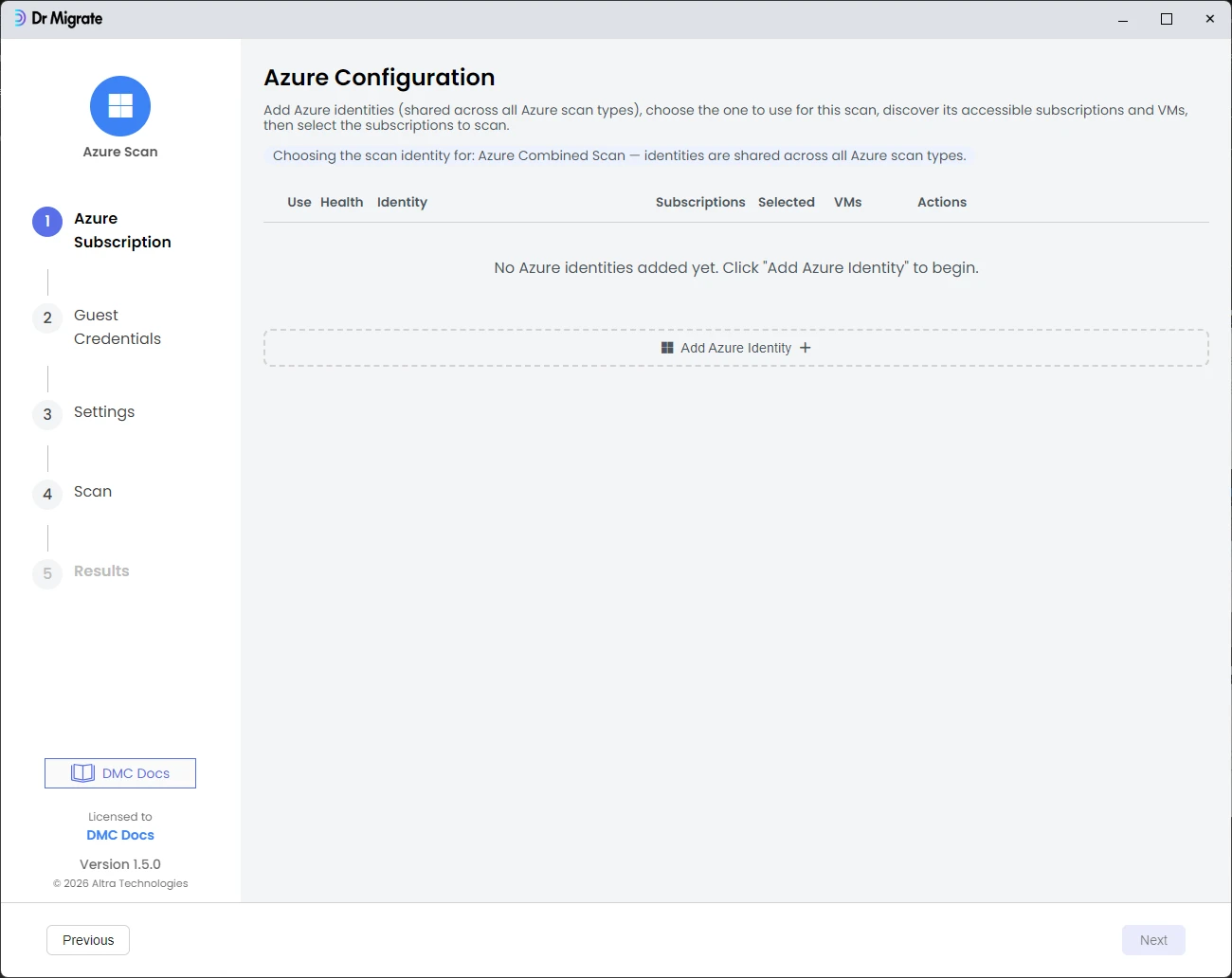
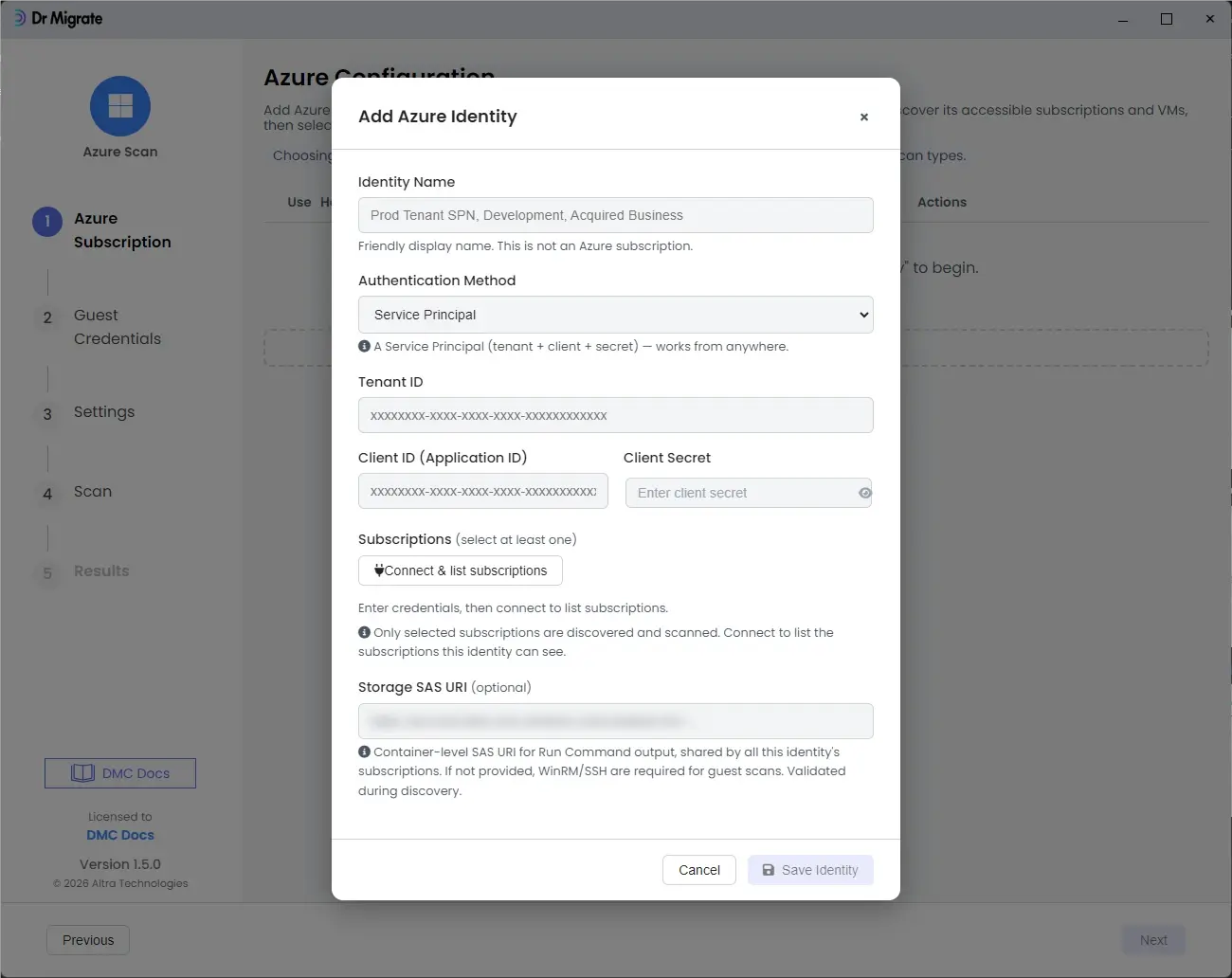
Guest Credentials
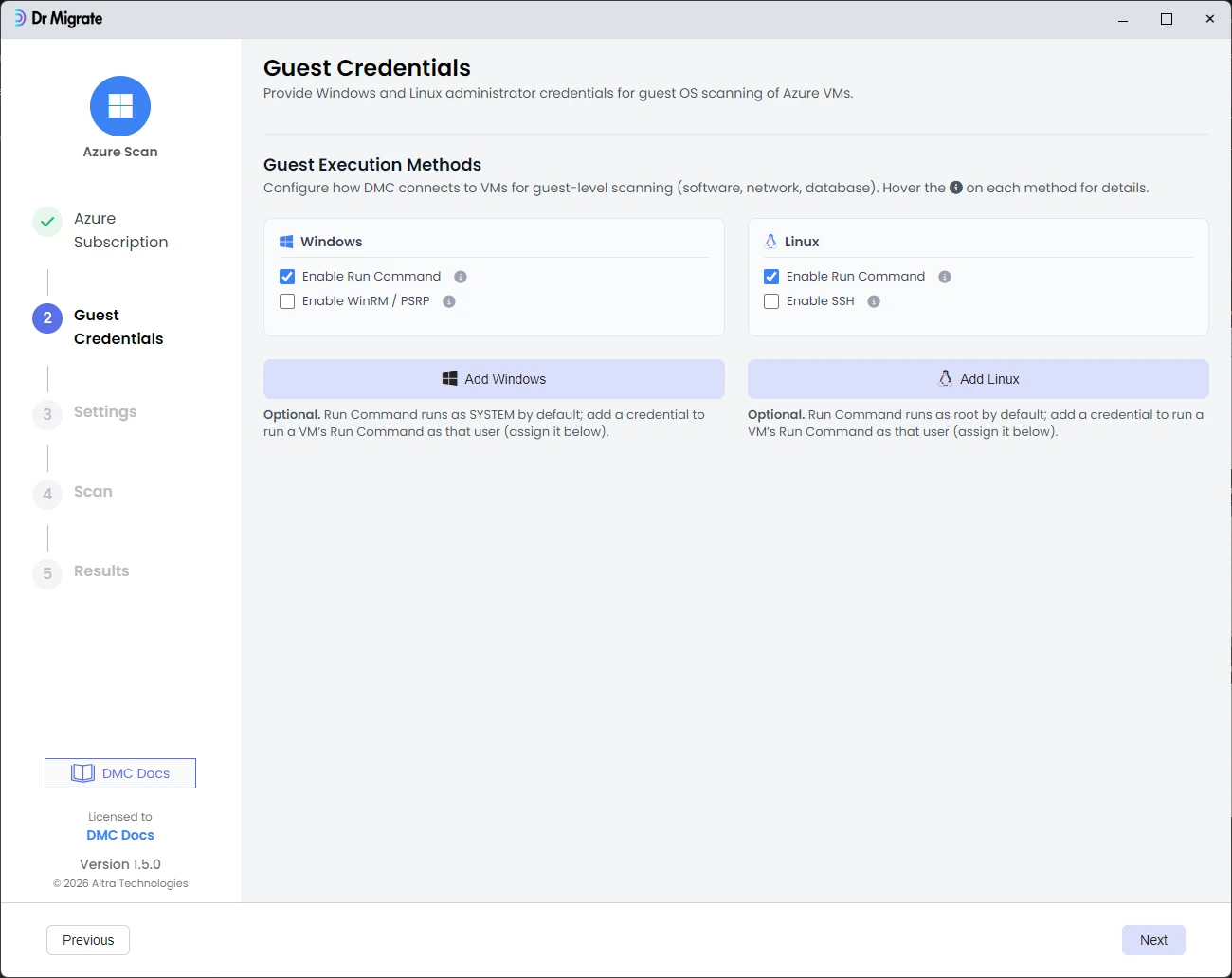
Add Windows and/or Linux administrator credentials for guest OS scanning. Windows credentials are used for WinRM connections; Linux credentials are used for SSH. Guest-level data (software, network, SQL) is collected only for VMs with matching credentials.
Settings
Configure two tabs before scanning:
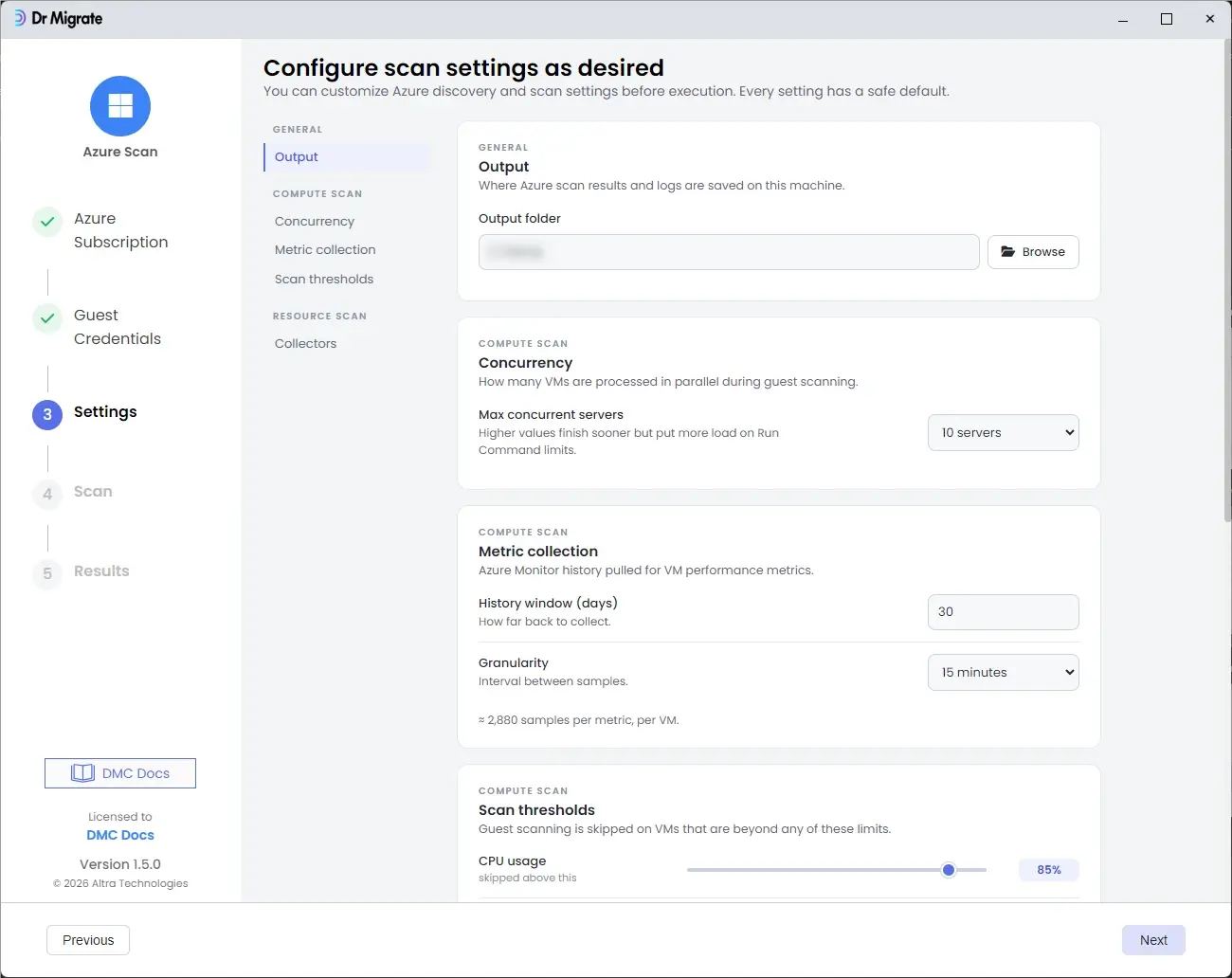
- General: Output path for scan results and logs; maximum concurrent servers (VMs processed in parallel); metric collection duration in days (1–90, default 30) and granularity in minutes (default 15).
- Compute: Scan thresholds. DMC skips guest scanning on a VM if CPU usage exceeds the threshold (default 85%), memory exceeds the threshold (default 75%), or free disk space is below the minimum (default 2 GB Windows C:\, 2 GB Linux /, 0.5 GB Linux /tmp). Guest execution methods: enable or disable WinRM (Windows) and SSH (Linux).
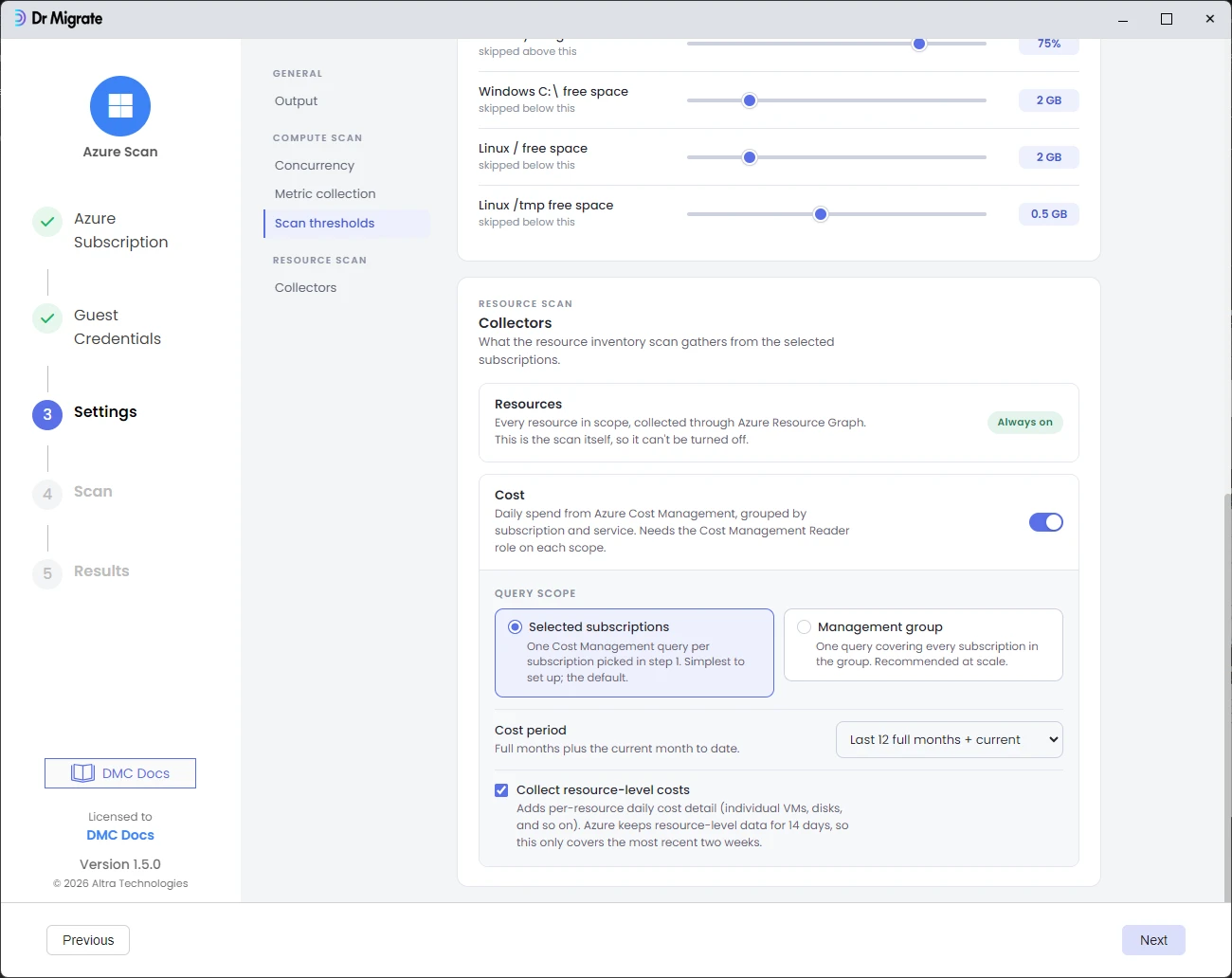
If you selected Both: a third Resource Inventory tab is also shown. Configure it as follows:
- Cost: Enable Collect cost data to pull rolled-up spend from Azure Cost Management (requires the
Cost Management Readerrole). Choose collection scope (per subscription or management group) and cost period (default: last 12 full months plus current month). Optionally enable resource-level cost detail, which collects per-resource daily cost for the last 14 days and is slower. - Azure Resource Inventory: All resource types are selected by default. Deselect any categories you do not need. The
Readerrole at subscription scope is sufficient for all resource types.
Run the scan
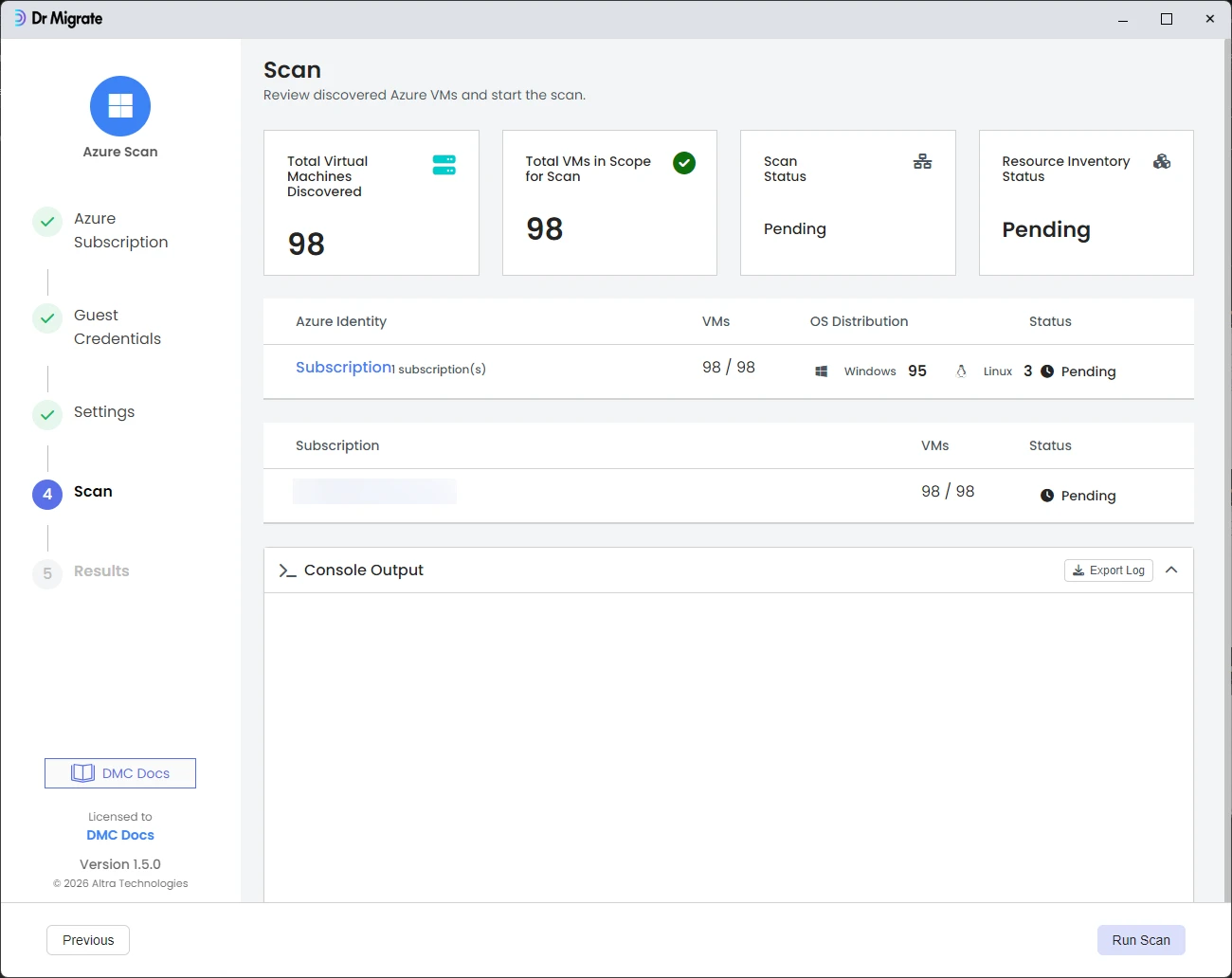
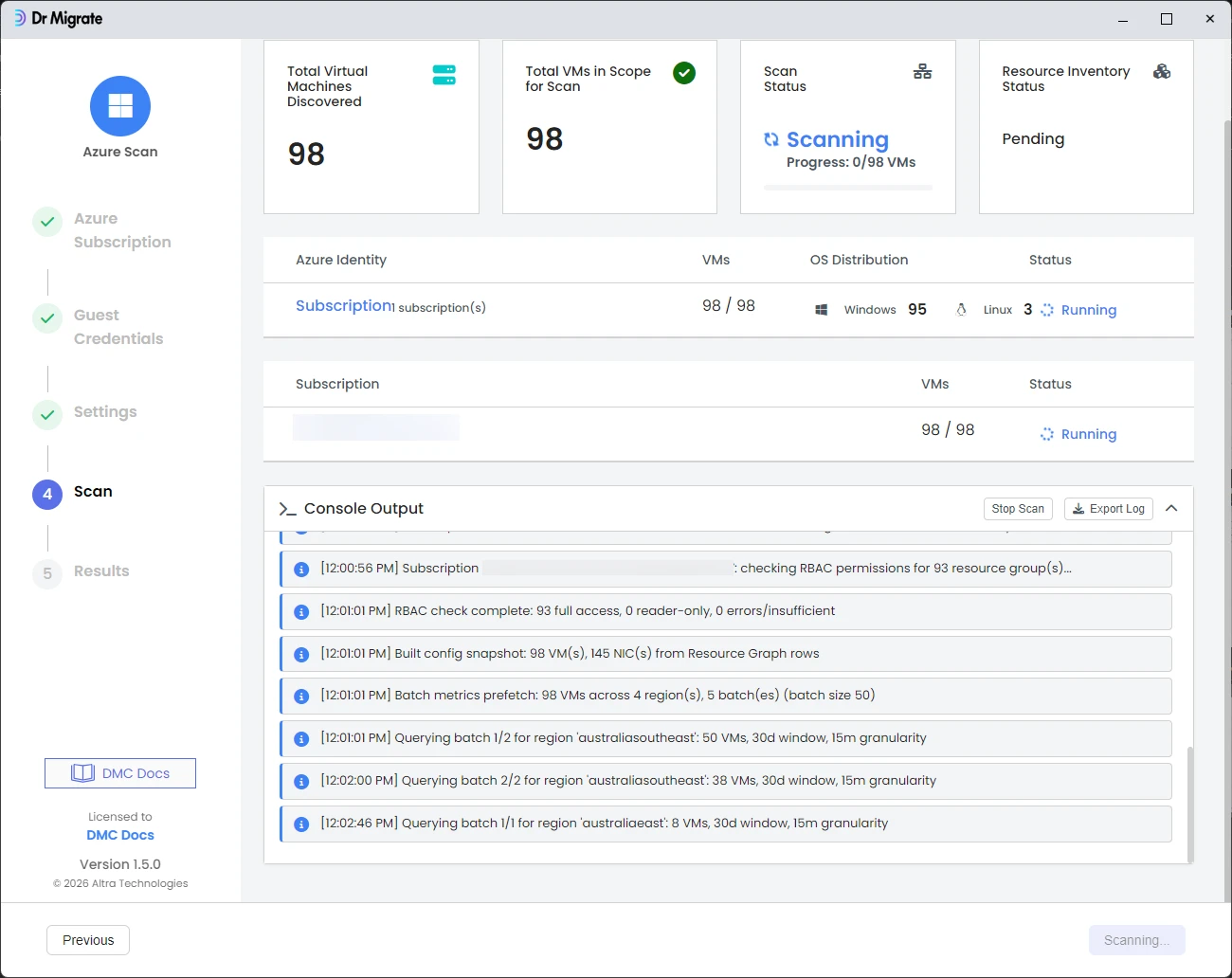
The Scan screen shows the total VMs discovered, VMs in scope, and per-subscription status. Click Run Scan. DMC displays real-time progress in the console output: resource inventory runs first, followed by VM guest scanning. The progress bar tracks VMs completed.
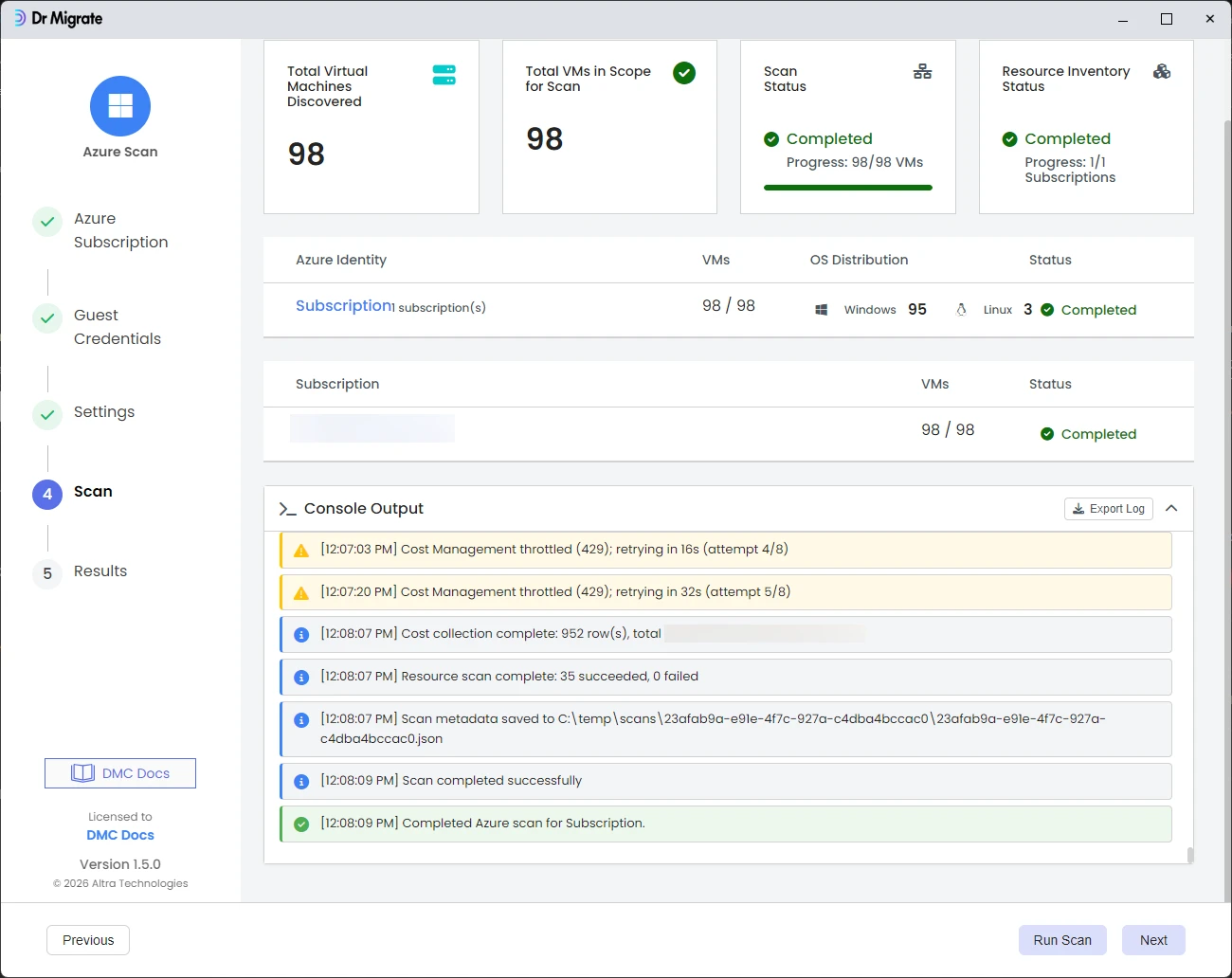
Azure Cost Management API throttling (HTTP 429) is expected and handled automatically. DMC retries with exponential backoff. Throttling warnings in the console output do not indicate a failure.
Export results
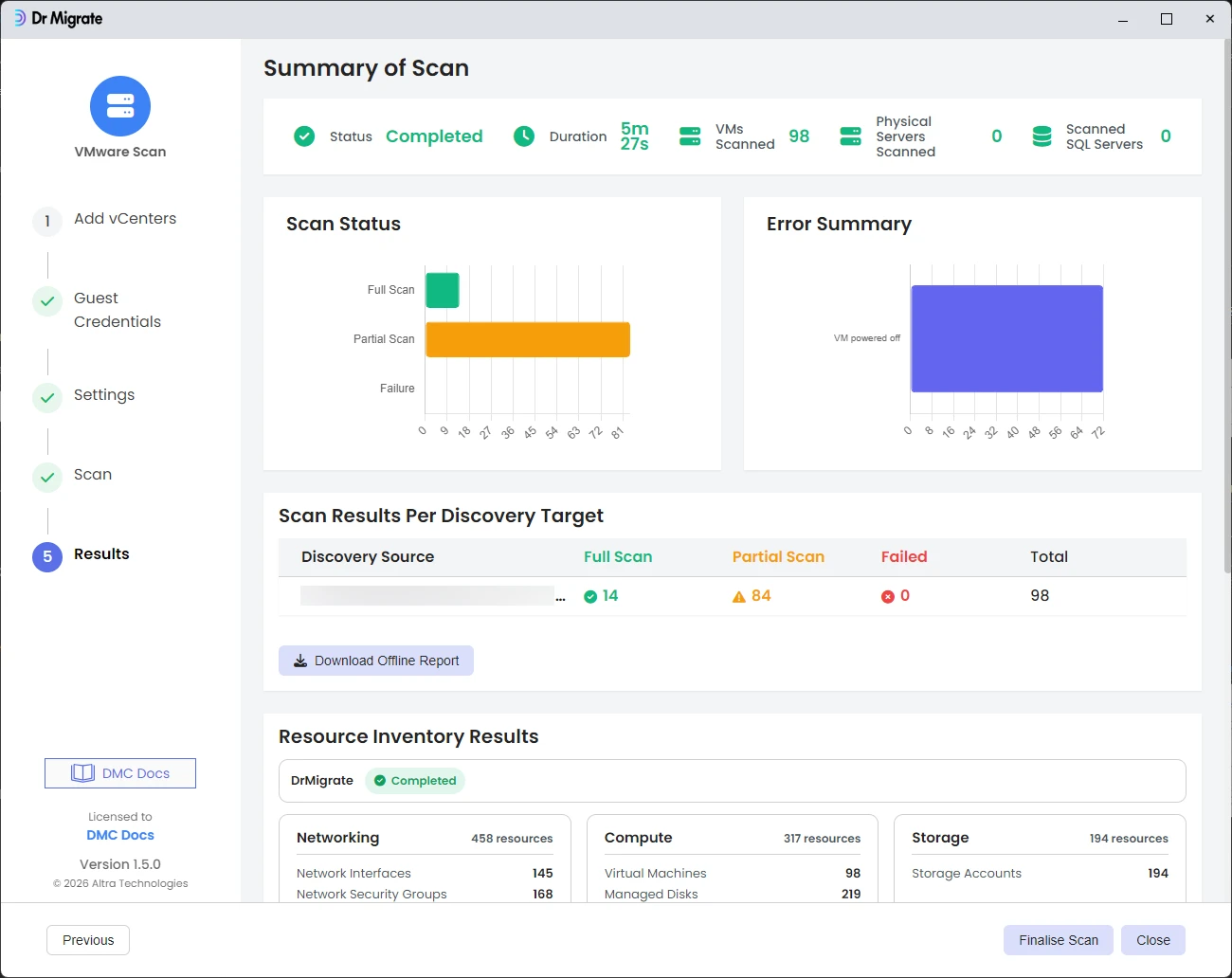
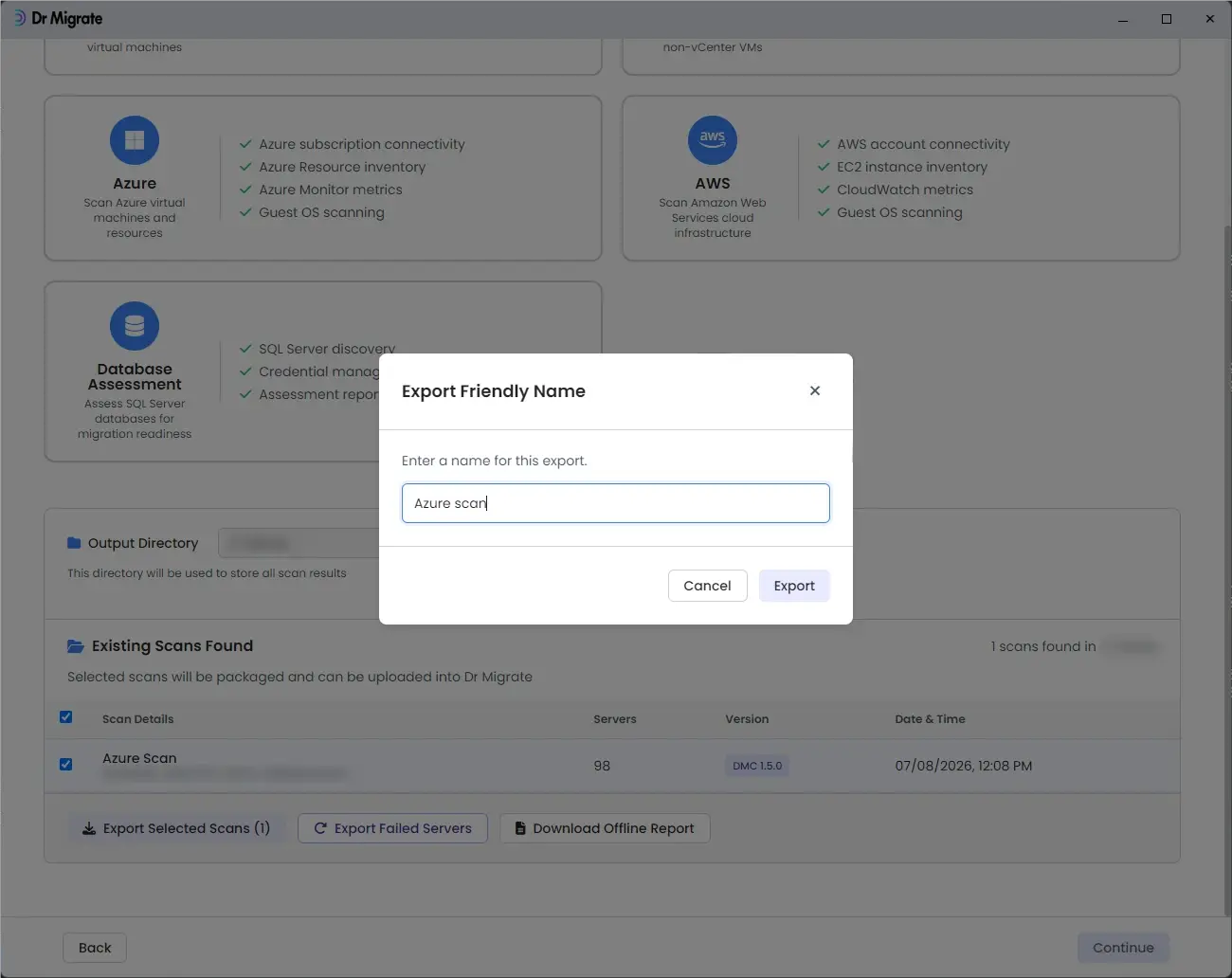
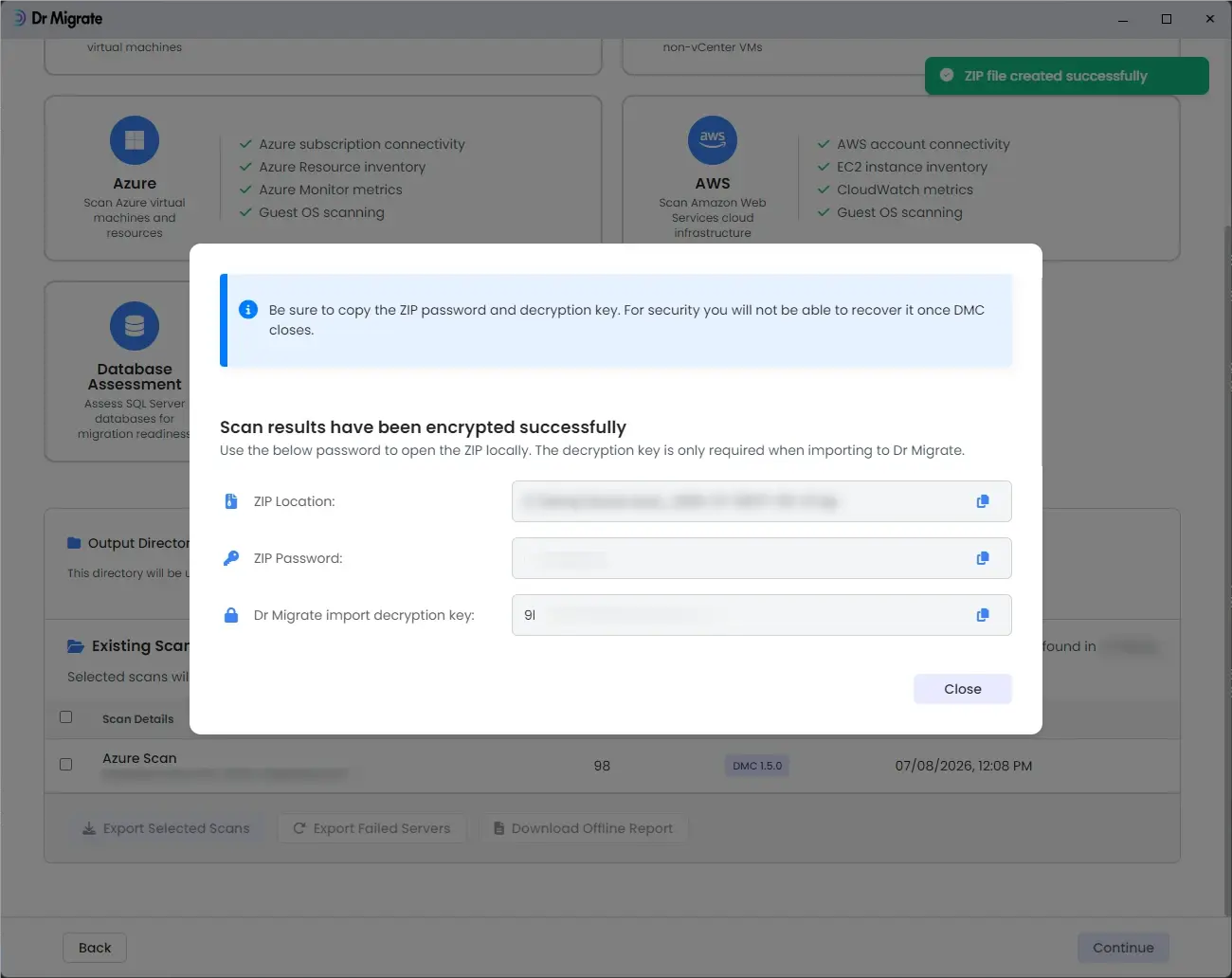
When the scan completes, proceed to the Results screen to export your scan file and import it into Dr Migrate.