

Environments
Environments lists every environment your applications and servers are mapped to. Each one has a type: Production, Non-Production or Unknown. The type decides whether a server uses the Production or Non-Production settings in TCO Settings.
Environments is only visible to Admin and Super Admin. Everyone can still assign existing environments to applications.
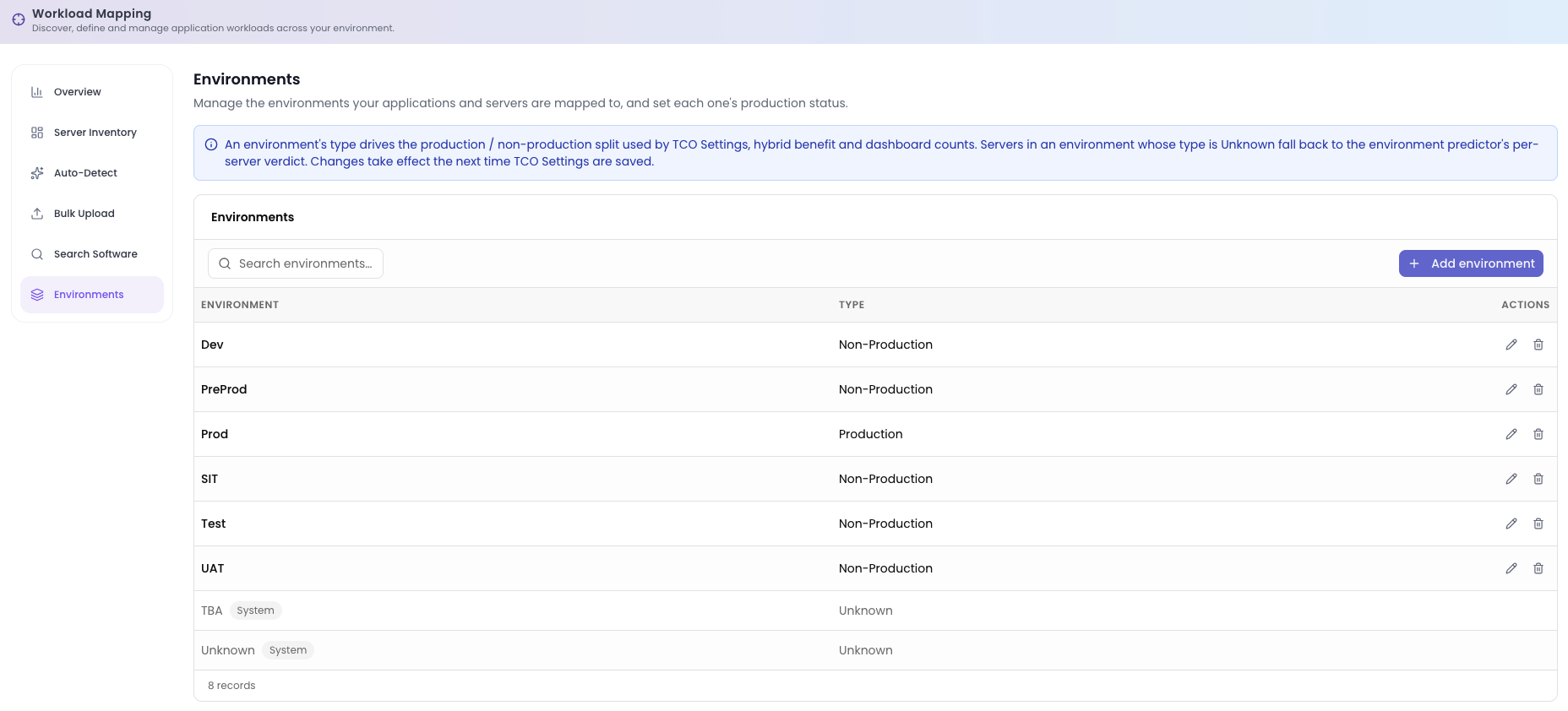
How the type affects costs
The type is used by TCO Settings, hybrid benefit and the dashboard counts. Changes take effect the next time TCO Settings are saved.
Servers in more than one environment
A server can be in more than one environment if it supports more than one application. It still gets one classification:
- If any of its environments is Production, it's Production.
- Otherwise, if any is Non-Production, it's Non-Production.
- If all of them are Unknown, the environment predictor decides from discovery data.
- If the predictor can't classify it, it's treated as Non-Production.
Managing environments
Select Add environment, enter a name and choose a type. Names must be unique, ignoring case, so you can't have both UAT and uat.
To change a type, select edit on any environment without the System badge. The form shows how many applications and servers use the environment before you save. Changing the type doesn't change the environment's name or which applications and servers are in it.
You can't delete an environment while servers are still in it. The dialog links to Server Inventory, filtered to those servers, so you can move them first. Once deleted, the name can be used again.
Unknown and system environments
Unknown means the environment hasn't been classified yet. It doesn't mean Non-Production. New environment names from an import or bulk upload appear here as Unknown, so check the list afterwards and set their types.
TBA and Unknown are system environments. Dr Migrate maintains them, and they can't be edited or deleted.
When costs update
Changing a type doesn't update costs straight away. After changing types:
- Open TCO Settings and save.
- Select Refresh TCO in the refresh prompt that appears across the TCO Analysis section.
If costs haven't changed, check the last refreshed time on TCO Settings.
Next step
Once your environments are classified, set the Production and Non-Production cost assumptions in TCO Settings. To see how servers in Unknown environments are classified, read Default Environment Classification.