Azure Rightsizing Export
Dr Migrate offers tools that allow you to adjust the settings for the virtual machine (VM) type and disk setup. This allows you to override any of the SKU’s that have been chosen by Azure Migrate.
Additionally, the rightsizing report gives you a detailed export of the recommended Azure configurations for all the servers evaluated
How to Export
Access Insights
The Azure Rightsizing Report Export can be found in the Insights chevron

Generate
Click on the “Generate” button to create a new Azure Right Sizing Export. Depending on environment size, it may take between 1-15 minutes.

Download
Once the export is generated, your download link will become available. To see the last time a report was generated, check the “Last Generated” column.
Click the copy icon and paste the secure link into your local desktop’s browser to download to your local machine.
Editing the Rightsizing Report
Once downloaded, you can open the file in Microsoft Excel, you should make any edits, and save this file.
Don’t enter values for “Hours Powered On (Daily)” when using 1 Year Reserved Instance or 3 Year Reserved Instance payment models.
These values are automatically set to 24 hours regardless of what you enter. This field only applies to PAYG payment model.
This behaviour is enforced because you don’t save costs deallocating VMs when using Reserved Instances.
See How reservation discount is applied for information.
Servers Tab
The first tab in the workbook is the Servers tab, this tab provides a list of all the servers that have been discovered by Dr Migrate, with a series of editable and non-editable fields.
The fields below are editable, all other fields can not be modified.
| Field | Usage |
|---|---|
| Target Azure Region | The current Target Azure Region for this machine, this defaults to the region selected within Dr Migrate Setup, but can be modified to match your requirement. If an invalid region is entered, the system will revert to the current region from the database. |
| Chosen SKU | The current Azure SKU for this machine, this is the SKU pulled from the Azure Migrate Assessment, it can be changed using the drop down. If an invalid SKU is entered, the system will revert to the current SKU from the database. |
| Chosen Payment Model | The current Payment Model for this machine, this defaults to the default SKU within Dr Migrate Setup, but can be modified to match your requirement. Valid values must match exactly: PAYG, 1 Year Reserved Instance, 3 Year Reserved Instance. Note: Validation is case-insensitive, but the exact format matters (e.g., “1 Year Reserved Instance” not “1Yr” or “1 Year Reserved”). If an invalid value is entered, the entire VM row will be excluded from processing. |
| Hybrid Benefit Setting | If the machine should be priced with Azure Hybrid Benefit applied. Must be exactly Yes or No (case-insensitive). If Dev/Test Setting is set to Yes, Hybrid Benefit will automatically be set to No. Warning: If this field is blank or contains any other value, the entire VM row will be excluded from processing. |
| SQL Hybrid Benefit Setting | If the machine should be priced with Azure SQL Hybrid Benefit applied. Must be Yes, No, or can be left blank. This is the only Yes/No field that allows blank values. |
| Dev/Test Setting | If the machine should be priced with Dev/Test Pricing applied. Must be exactly Yes or No (case-insensitive). When set to Yes, Hybrid Benefit Setting is automatically disabled. Warning: If this field is blank or contains any other value, the entire VM row will be excluded from processing. |
| Hours Powered On (Daily) | The number of hours this machine is powered on during an average day. This field only applies to PAYG payment model (must be between 0-24 hours). For Reserved Instance payment models, this value is automatically set to 24 hours regardless of what you enter. |
| Backup Setting | If the machine should be priced with Azure Backup. Must be exactly Yes or No (case-insensitive). Warning: If this field is blank or contains any other value, the entire VM row will be excluded from processing. |
| Disaster Recovery Setting | If the machine should be priced with Azure Site Recovery. Must be exactly Yes or No (case-insensitive). Warning: If this field is blank or contains any other value, the entire VM row will be excluded from processing. |
Disk Tab
The second tab in the workbook is the Disk tab, this tab provides a list of the disk details of all servers discovered, with a series of editable and non-editable fields.
| Field | Usage |
|---|---|
| Chosen Disk SKU | The current Azure SKU for this disk, this is the SKU pulled from the Azure Migrate Assessment, it can be changed using the drop down. For standard managed disks, disks starting with “P” will be prefixed with “Premium_”, while others will be prefixed with “Standard_”. Disks marked as “Unknown” will be filtered out during processing. |
| Disk Size GB (Ultra & Premium SSDv2 Only) | If the disk is sized for an Ultra or Premium SSDv2, its Size in GB will be shown here, else it will be blank. For Ultra disks, the size will be rounded up to the nearest valid size (doubling sequence: 4, 8, 16, 32… up to 1024GB, then increments of 1GB up to 65535GB). For Premium SSD v2, size must be between 1-65536GB. Critical: For Ultra and Premium SSD v2 disks, you must provide values for all three fields (Size, IOPS, and Throughput). If any field is missing or invalid, the entire disk row will be excluded from processing. |
| Provisioned IOPS (Ultra & Premium SSDv2 Only) | If the disk is sized for an Ultra or Premium SSDv2, its amount of provisioned IOPS will be shown here, else it will be blank. For Premium SSD v2, IOPS are capped at disk size × 500 and rounded up to the nearest 500. For Ultra disks, IOPS are capped based on the disk size limits. Critical: This field is required for Ultra and Premium SSD v2 disks. If missing or invalid, the entire disk row will be excluded from processing. |
| Provisioned Throughput (MBPS) (Ultra & Premium SSDv2 Only) | If the disk is sized for an Ultra or Premium SSDv2, its amount of provisioned throughput will be shown here, else it will be blank. For Premium SSD v2, throughput is capped at provisioned IOPS × 0.25 and rounded up to the nearest 0.25 MBPS. For Ultra disks, throughput is capped based on the disk size limits. Critical: This field is required for Ultra and Premium SSD v2 disks. If missing or invalid, the entire disk row will be excluded from processing. |
| Storage Target | The desired target storage type for this disk, can choose from Managed Disk (default), Blob Storage - Hot, Blob Storage - Cool, Blob Storage - Archive, Azure NetApp Files, or Azure File Storage. This defines how you would like the disk priced. |
| Payment Model (Blob Storage Only) | If you have selected a Storage Type of Blob Storage Hot, Cool, or Archive, this field denotes the Payment model. Valid values must match exactly: PAYG, 1 Year Reserved, 3 Year Reserved (case-insensitive). For Azure File Storage, this field can also be used and accepts the same values or can be left blank. Note: For Azure NetApp Files, this field is completely ignored - do not fill it in. |
| Storage Redundancy (Blob Storage Only) | If you have selected a Storage Type of Blob Storage Hot, Cool, or Archive, this field denotes the data redundancy for the stored data. Choose from LRS, ZRS, GRS, GZRS, RA-GRS, RA-GZRS. For Reserved Blob Storage, if the combination of region, redundancy, and reservation term is not available, the system will automatically default to LRS without warning - check your results after upload. For Azure File Storage, this field can also be used and accepts the same redundancy options or can be left blank. Note: For Azure NetApp Files, this field is completely ignored - do not fill it in. The disk region is automatically inherited from the VM’s Target Azure Region - you cannot set a different region for the disk. |
Editable fields are either changeable via validated drop-down, or free text, depending on the field.
Common Issues and How to Avoid Them
Template Structure
Do not modify the Excel template structure. The system validates the exact column headers and will reject the entire file if:
- Column headers are renamed, reordered, or deleted
- New columns are added
- Sheet names are changed
- The first 5 rows of data are modified
If the template structure is modified, you will receive an error notification and the upload will fail. Always use the latest unmodified template downloaded from Dr Migrate.
VM Processing Issues
Rows are filtered out silently for invalid values
If you enter invalid values for certain fields, the entire VM row will be excluded from processing (not just that field reverted). The following fields will cause row exclusion if invalid:
- Chosen Payment Model: Must be exactly one of:
PAYG,1 Year Reserved Instance,3 Year Reserved Instance(case-insensitive). Common mistakes: “1Yr”, “1 Year Reserved”, “Pay-As-You-Go”, “Savings Plan” will cause the row to be filtered out. - Dev/Test Setting: Must be exactly
YesorNo(case-insensitive). Any other value (including blank, “Y”, “N”, “True”, “False”) will cause the row to be excluded. - Hybrid Benefit Setting: Must be exactly
YesorNo(case-insensitive). Blank values will cause the row to be excluded. - Backup Setting and Disaster Recovery Setting: Must be exactly
YesorNo(case-insensitive).
Server name matching
The Server name in your Excel file must match exactly with the server name in Dr Migrate. If the server name doesn’t match, that row will be silently excluded from processing. Check for:
- Extra spaces before or after the server name
- Case sensitivity differences (though matching is case-insensitive, verify the exact spelling)
- Special characters or formatting differences
Hours Powered On for Reserved Instances
Do not waste time entering values for “Hours Powered On (Daily)” when using Reserved Instance payment models. These values are automatically set to 24 hours regardless of what you enter. This field only applies to PAYG payment model.
Dev/Test and Hybrid Benefit conflict
If you set Dev/Test Setting to Yes, do not also set Hybrid Benefit Setting to Yes - it will be automatically changed to No during processing. These settings cannot be used together.
Disk Processing Issues
Ultra and Premium SSD v2 disks require all three fields
For Ultra disks and Premium SSD v2 disks, you must provide values for all three fields:
- Disk Size GB
- Provisioned IOPS
- Provisioned Throughput (MBPS)
If any of these fields are missing or invalid, the entire disk row will be excluded from processing. Ensure all three values are entered before uploading.
Unknown disks are filtered out
Disks marked as “Unknown” in the Chosen Disk SKU field are completely filtered out during processing. These disks will not be updated. If you need to update these disks, first change the SKU to a valid value.
Blob Storage Reserved combinations may default to LRS
When using Reserved Blob Storage (1 Year Reserved or 3 Year Reserved), the system validates that your specific combination of region, redundancy, and reservation term is available. If the combination is not available (for example, ZRS with 3 Year Reserved in a specific region), the system will automatically change the redundancy to LRS without warning. Check your uploaded file results to verify the final redundancy setting.
Blob Storage region inheritance
For Blob Storage, the disk region is automatically inherited from the VM’s Target Azure Region. You cannot set a different region for the disk than the VM. If you need the disk in a different region, you must also change the VM’s Target Azure Region.
Azure NetApp Files ignores payment and redundancy
If you select Azure NetApp Files as the Storage Target, any values you enter for Payment Model and Storage Redundancy will be completely ignored. Only the region (inherited from the VM) is validated. Do not waste time filling in these fields for Azure NetApp Files.
Azure File Storage fields are optional
For Azure File Storage, the Payment Model and Storage Redundancy fields can be left blank. These are optional fields. If you leave them blank, the disk will still be processed successfully.
Managed Disk SKU prefixing
When entering a managed disk SKU, you do not need to include the “Premium_” or “Standard_” prefix. The system automatically adds these prefixes based on the SKU name:
- SKUs starting with “P” → “Premium_” prefix added
- All other SKUs → “Standard_” prefix added
For example, if you enter “P10”, it becomes “Premium_P10”. If you enter “S10”, it becomes “Standard_S10”.
Important Mapping Behaviors
VM Processing
- Invalid Values: If you enter an invalid SKU or region, the system will automatically revert to the current value stored in the database rather than rejecting the entire row.
- Case Sensitivity: All validations are case-insensitive, so “payg”, “PAYG”, and “PayG” are all treated the same.
- Payment Model Interactions: When using Reserved Instance payment models (1 Year or 3 Year), the Hours Powered On field is automatically set to 24 hours regardless of what you enter.
- Dev/Test and Hybrid Benefit: These settings cannot be used together. If Dev/Test Setting is set to Yes, Hybrid Benefit Setting will automatically be set to No during processing.
Disk Processing
- Managed Disk SKU Prefixing: Standard managed disks are automatically prefixed based on their SKU name:
- Disks starting with “P” receive a “Premium_” prefix
- All other disks receive a “Standard_” prefix
- Ultra Disk Size Rounding: Ultra disk sizes are rounded up to the nearest valid size using a doubling sequence (4GB, 8GB, 16GB, 32GB… up to 1024GB), then increments of 1GB up to 65535GB. IOPS and throughput are automatically capped at the maximum allowed for the selected disk size.
- Premium SSD v2 Limits: Premium SSD v2 disks have specific limits that are automatically enforced:
- Size: 1-65536GB
- Maximum IOPS: Disk size × 500 (rounded up to nearest 500)
- Maximum Throughput: Provisioned IOPS × 0.25 MBPS (rounded up to nearest 0.25)
- Blob Storage Region Mapping: The disk region for Blob Storage is automatically inherited from the VM’s Target Azure Region. You do not need to specify it separately.
- Blob Storage Reserved Validation: For Reserved Blob Storage (1 Year or 3 Year), the system validates that the combination of region, redundancy, and reservation term is available. If not available, the redundancy is automatically changed to LRS.
- Azure NetApp Files: Only the region is validated. Payment Model and Storage Redundancy fields are ignored for this storage type.
- Azure File Storage: Payment Model and Storage Redundancy fields are optional and can be left blank. The storage tier is set to “Azure File Storage” and the storage target stores the redundancy value if provided.
Uploading the Rightsizing Export
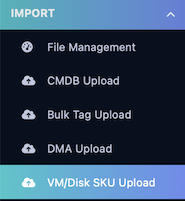
Rightsizing Export Upload can be found in the menu, on the left hand side.
Choose Your Upload Method
Marketplace Upload Options
Direct to Storage Account

-
Copy the provided link and paste it into your desktops local browser. It will open an Azure Storage account window where you can upload the template.
If you encounter issues accessing the storage account, it is recommended you use the Secure Link option, to upload your mapping data. -
Once uploaded to the storage account, wait for 30 seconds. Then refresh the file list in Dr Migrate, once visible, click “Load into Dr Migrate” to load your mapping data.
Upload via Secure Link

This approach requires that you upload your application mapping to a secure file storage solution, such as Azure Blob storage, and generate a secure sharing link for Dr Migrate to use. Simply create a SaS link for your uploaded file, and paste it into the provided area and click load.
Click here to learn more about using Azure Blob Storage to upload files, and create SAS tokens.
SaaS Upload Options
Upload from Local Machine
