Manage SaaS License
Overview
This guide helps you manage, upgrade, or cancel your Dr Migrate license using the License Information page in the Express Portal.
You can view your current license details, modify your subscription, add billing contacts, and cancel or decommission your Dr Migrate instance through the License Information page.
Prerequisites
- Dr Migrate portal access (Admin or Billing Contact)
- Authority to make subscription changes
Responsibilities
- Admins: Responsible for selecting and managing the appropriate license plan.
- Billing Contacts: Receive notifications regarding payment and renewal information.
Viewing License Information in Dr Migrate
Log in to Dr Migrate Portal
Navigate to the Dr Migrate Portal and log in.
Navigate to Manage License Page
Navigate to the Manage License page for the corresponding Customer Deployment.

Access the Manage License page
Review License Information
Review current and renewal license details under License Information.
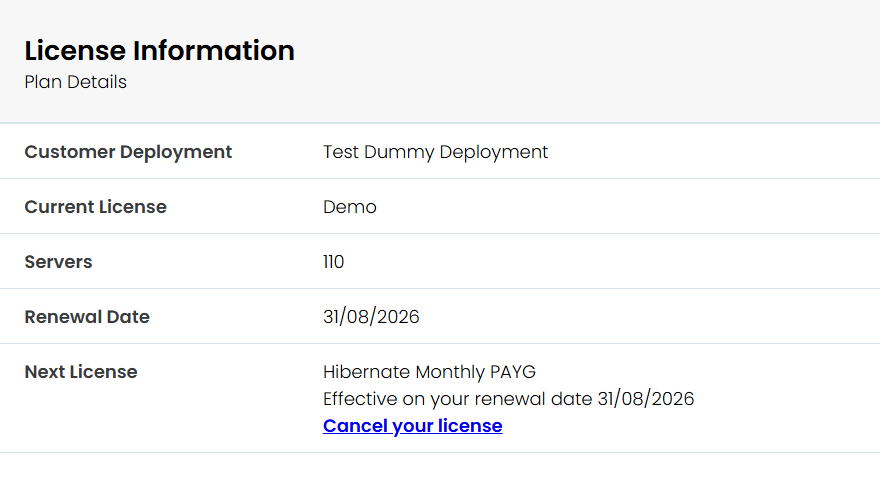
View your license details
Changing Your License
Access Renewal License Options
Navigate to the Renewal License Options at the bottom of the Manage License page.
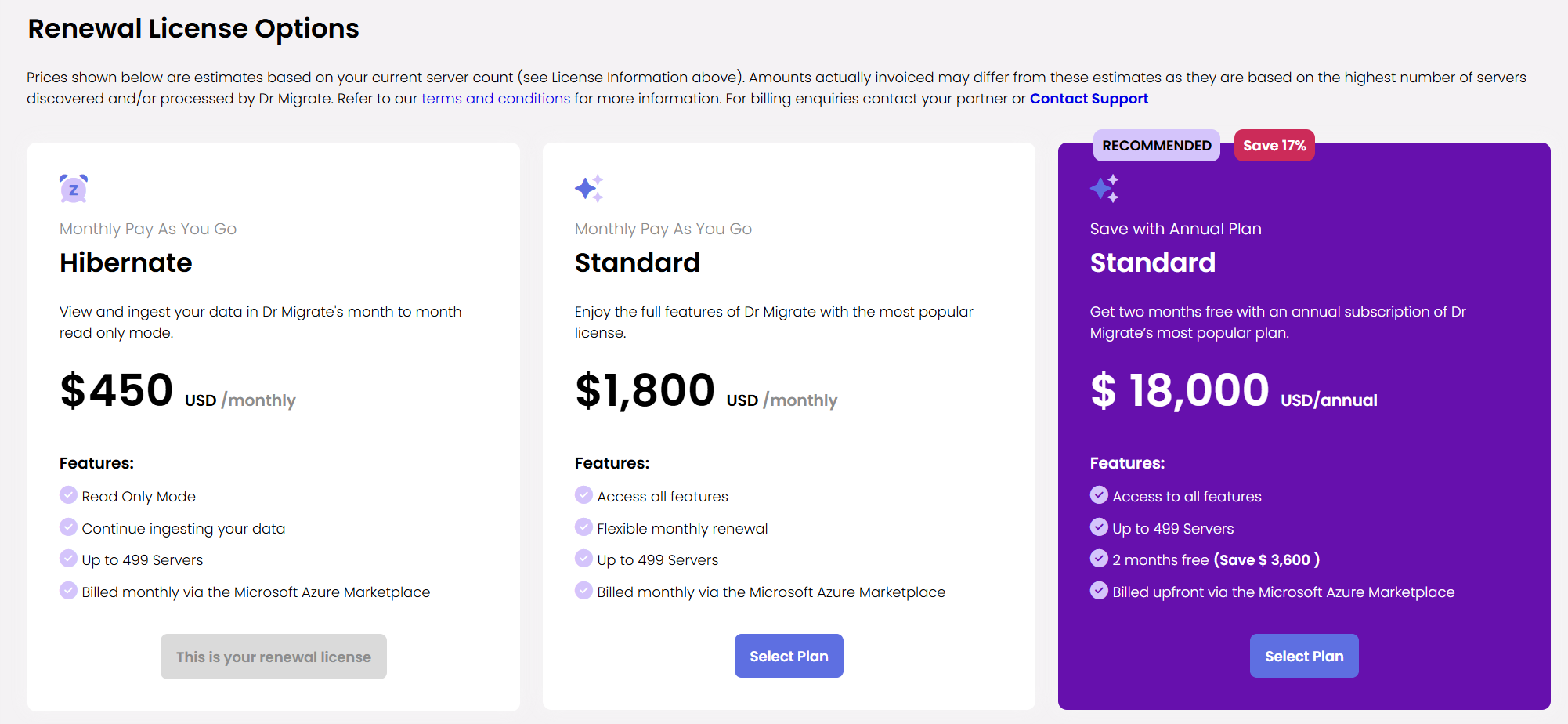
Access renewal license options
Select New License Plan
Select the new license plan:
- Hibernate (Monthly PAYG) – Read-only access.
- Standard (Monthly PAYG) – Full features with monthly billing.
- Standard (Fixed Annual) – Full features, two (2) months free with upfront billing.
Confirm License Change
A new window will pop up for you to confirm your choice.
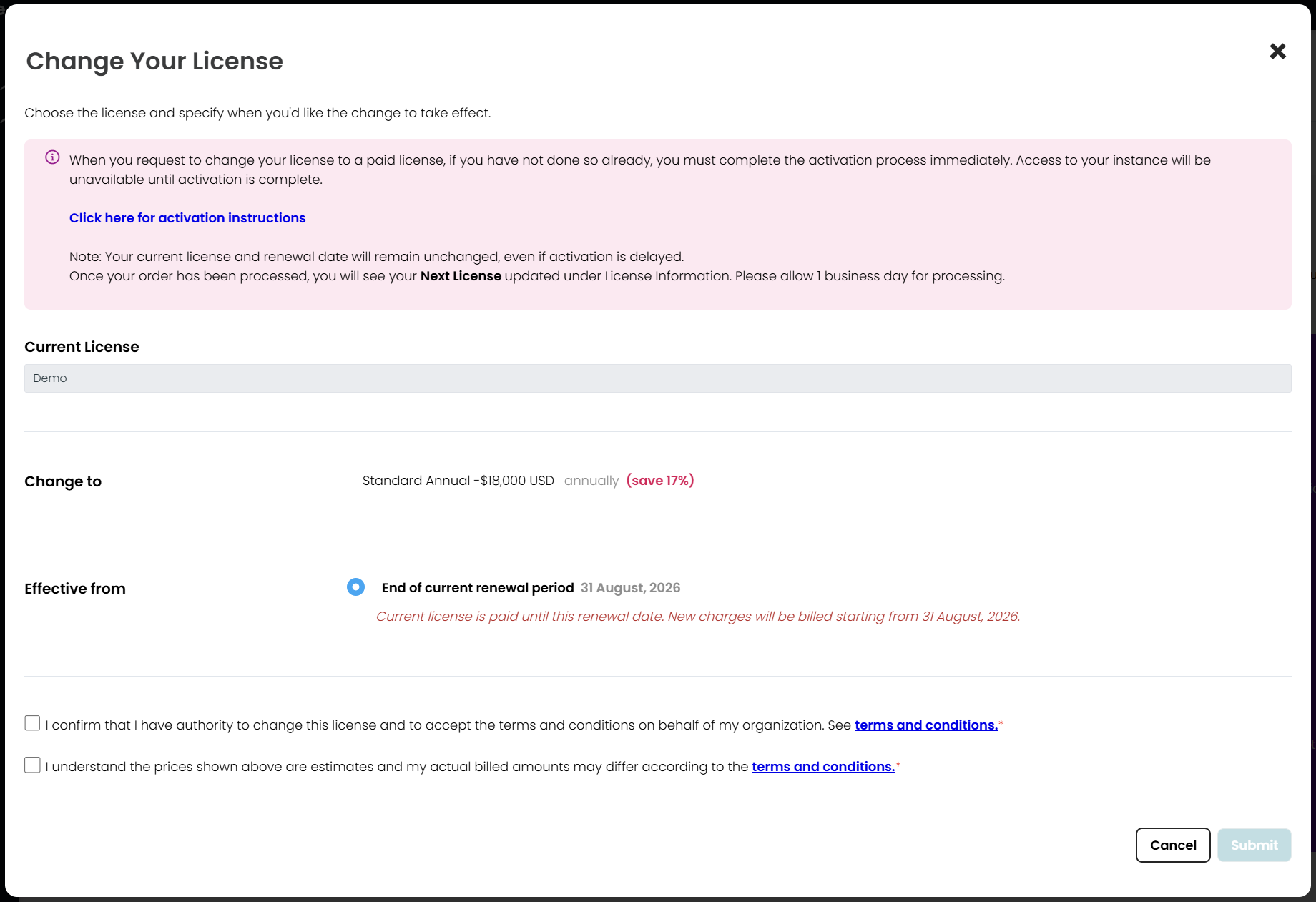
Confirm your license change
Choose Effective Date
If given the option, choose your effective from date:
- Today
- At the end of current renewal period
- A custom date (must be within 60 days from today)
Confirm Authority and Terms
Confirm you have authority to change your license and agree to the terms and conditions by ticking the checkbox(es).
Submit License Change
Click Submit to request the plan change.
Managing Billing Contacts
Review Billing Contacts
In the Billing Contacts section, review the current contact list.
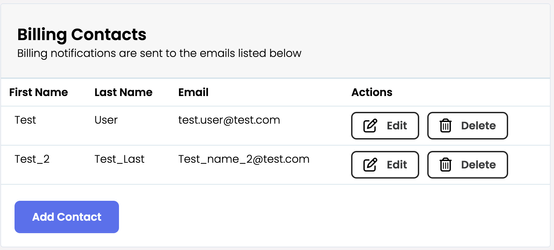
Manage your billing contacts
Edit Existing Contact
To edit a contact, click the Edit button next to their name and update the information.
Remove Contact
To delete a contact, click the Delete button and confirm removal.
Add New Contact
To add a new contact, click Add Contact, enter the details, and save.
Canceling Your License
Navigate to License Information
Navigate to your License Information in the Manage License page, and click Cancel your license.
Access cancellation option
Confirm Cancellation
To confirm license cancellation, review the information about data retention and renewal dates, ensure the confirmation checkbox is checked, then click Apply to finalize the cancellation.
Validate results
- Updated plan appears on License Information
- Billing contacts reflect recent edits
- Cancellation shows a scheduled end-of-term status
Troubleshooting
- Missing Manage License link: ensure you are an Admin or Billing Contact
- Changes not applied: refresh and verify permissions, then retry
- Cancellation not visible: verify the correct Customer Deployment row was selected
Next steps
- If decommissioning: remove Marketplace deployment in Remove Dr Migrate
- Review billing contacts regularly to keep access current